

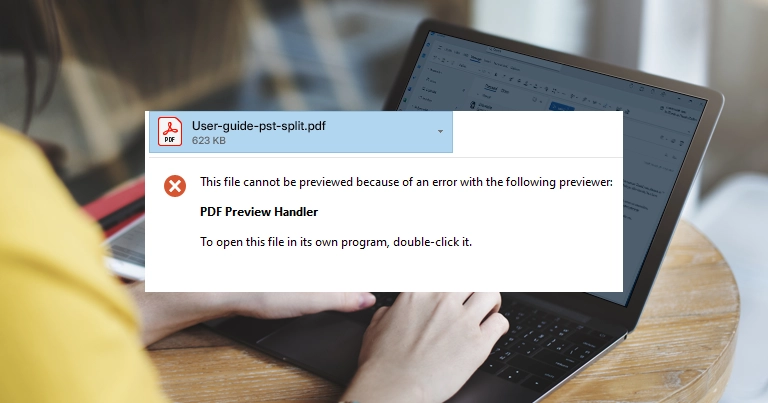
Outlook’s PDF preview feature reduces users’ time by allowing them to access the attachments without downloading. When it stops working, even simple tasks like reviewing invoices, reports, or shared documents become time-consuming & frustrating.
Want to restore its complete functionality? The EmailsKB platform will help you in this by providing complete information about the most common & overlooked concerns. Go with this easy write-up to know different methodologies to fix Outlook PDF preview not working issue.
Reasons behind the Microsoft Outlook PDF Preview not Working Issue
Here is the list of reasons that can cause the Outlook PDF preview not working issue.
- Dealing with large or complex PDF files.
- Working with an outdated Outlook or a PDF reader.
- Distorted attachment links or damaged PDF file.
- Incorrect or incompatible default PDF application.
- Interference of third-party apps like antivirus and security tools.
- Disabled attachment preview in trust center after any updates.
- Conflicting Outlook Add-ins & corrupt temporary preview cache.
Effective Methods to Fix Outlook PDF Preview Not Working Issue
Take the help of the free manual methods to fix the Microsoft Outlook PDF preview not working issue.
Solution 1. Enable Attachment Preview in the Trust Center
Outlook can’t show PDFs in the preview pane if the attachment preview settings are disabled. Enabling it is the foremost approach to address the issue. Follow the steps below to implement the method:
Step 1: Launch the Outlook application & go to the File menu.
Step 2: In the next window, choose Options.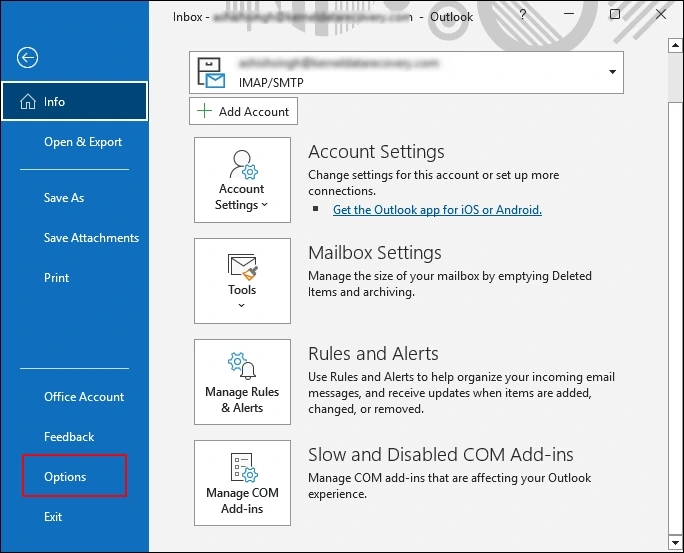
Step 3: Select the Trust Center & click on the Trust Center Settings.
Step 4: Tap on Attachment Handling & enable the Turn off Attachment Preview. Hit Attachment and Document Preview & ensure that PDF Preview Handler is enabled.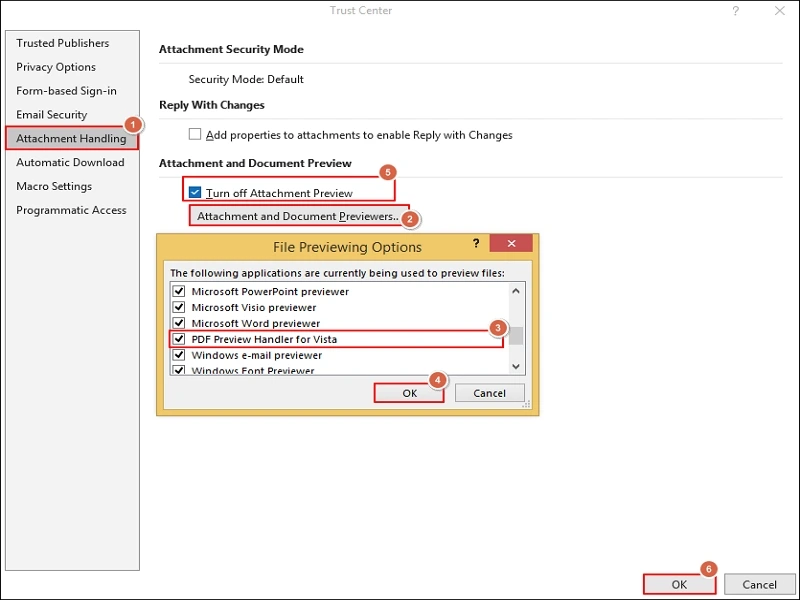
Step 6: Close & restart the Outlook application once the process is completed.
Solution 2. Disable Conflicting Add-ins in Outlook
PDF preview failures can occur due to faulty add-ins as they can misalign with the Outlook’s core functionality. Go with the following steps to tackle this situation:
Step 1: Open Outlook & go to the File menu.
Step 2: In the next window, select Options.
Step 3: Choose Add-ins & navigate to Manage > COM Add-ins > Go.
Step 4: Uncheck the recently installed & non-Microsoft Add-ins. Click OK.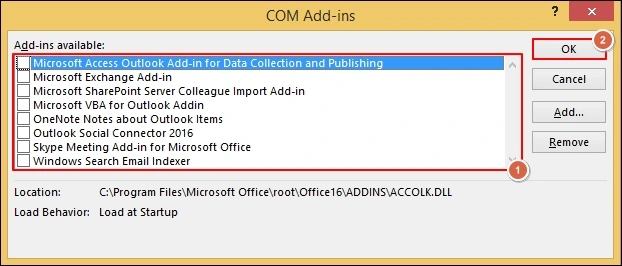
Step 5: Restart the Outlook application & verify the preview functionality.
If it works after restarting, reactivate the add-ins one by one to locate the leading cause.
Solution 3. Use the Updated Outlook Application
Using the outdated Outlook version poses several setbacks like security vulnerabilities, poor performance & incompatibility with features like Outlook’s PDF Preview. So, updating the Microsoft Outlook application can be another practical method. Follow the steps below to execute the process:
Step 1: Launch the Outlook application & tap on the File menu.
Step 2: Choose the Office Account > Update> Update Now option.
Step 3: If an Outlook update is available, then install it. Restart Outlook & check the status of the issue.
Solution 4. Clear Outlook’s Temporary Attachment Cache
Corrupt preview cache files often create hindrances in PDF previews. So, clearing them will create a fresh preview environment in Outlook. With this method, we only delete temporary preview files, not the emails. Clear the cache with the following steps:
Step 1: Close the Outlook application completely.
Step 2: Open File Explorer & paste the following path in the address bar:
%localappdata%\Microsoft\Windows\INetCache\Content.Outlook
Step 3. Delete all the folders & files inside. Then, restart Outlook.
Solution 5. Repair Microsoft Office with the Quick Repair Feature
PDF preview handler failure can also occur due to damaged Outlook components. In that case, repairing the Microsoft Office can be helpful as it will help to fix minor bugs & inherent inconsistencies. Repair Microsoft Office by following the below steps:
Step 1: Press Windows + Q keys & type Control Panel. Press Enter.
Step 2: Go to the Programs and Features option.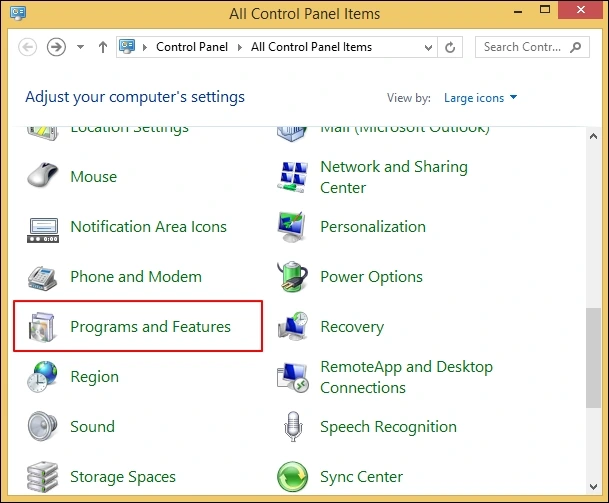
Step 3: Locate Microsoft 365, right-click on it & select Change.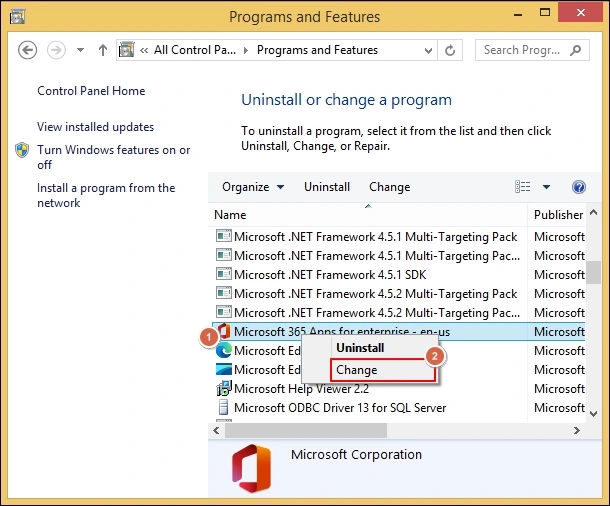
Step 4: Choose the Quick Repair & select the Repair option.
Step 5: Once the repair is done, reboot your system & test the preview status.
Important to know:
In some instances, certain antivirus tools block Outlook from loading embedded preview handlers. So, verify the case by turning it off temporarily. If it is an issue, change the antivirus settings accordingly.
Tips to Maintain Smooth PDF Preview Performance
Go with the following guidelines to retain a smooth PDF preview performance:
- Always go with the standard PDF format.
- Avoid using multiple PDF tools on the same system.
- Clean up temporarily or unwanted files regularly.
- Maintain healthy mailbox storage to avoid preview delays.
- Avoid renaming the PDF files with special characters.
Conclusion
The “Outlook PDF preview not working Windows 11” issue is common, but usually easy to fix with simple adjustments. The blog has covered all the essential information about the concern with easy-to-follow practical methods. Try them one by one & restore your PDF preview functionality to a healthy state.
Be with the EmailsKB platform to know easy-to-understand & experts trusted solutions to counter your tech issues.