

To convert Google emails to PDF with attachments, you can use Outlook’s & Thunderbird’s email clients, or other email clients, along with Gmail’s built-in Print to PDF feature. But to save emails with attachments, you need to download attachments separately. If you need to save multiple Gmail emails in PDF, then you need to perform the process repeatedly in Gmail, but Outlook or Thunderbird email clients help you to do the same at once. However, many users don’t know the right steps to do so. So, we’re here to help you out.
Imagine you wake up one day and find your Gmail account locked, hacked, or empty. Your important business emails, including communications & invoices, are gone. It might sound scary. That’s why it’s necessary to convert Gmail emails to PDF.
EmailsKB is a widely well-known & trusted platform for easier and free solution-focused guides. Here, you’ll get effective methods so you can safely export Google messages to PDF with no data loss.
Why Convert Google Emails to PDF? Common PDF Usage
Conversion of Gmail emails into PDF format helps you store, share, & protect important communication records in a universally accepted file format. People usually convert Gmail emails to PDF for:
- Legal documentation.
- Business record keeping.
- Offline email backup.
- Sharing emails without modification risk.
- Migrating important email data.
PDF files preserve original formatting, timestamps, & content structure. They also prevent accidental modifications and help to keep the text, images, & other content intact.
How to Convert Gmail Emails to PDF Using Print Option?
Gmail is a widely used email client application for email management. However, users can also convert Google emails to PDF without hassle. However, it can only convert and works best for single emails at a time. Steps to convert Gmail email to a PDF are as follows:
- Open your Gmail application with an account configured and open your preferred email.
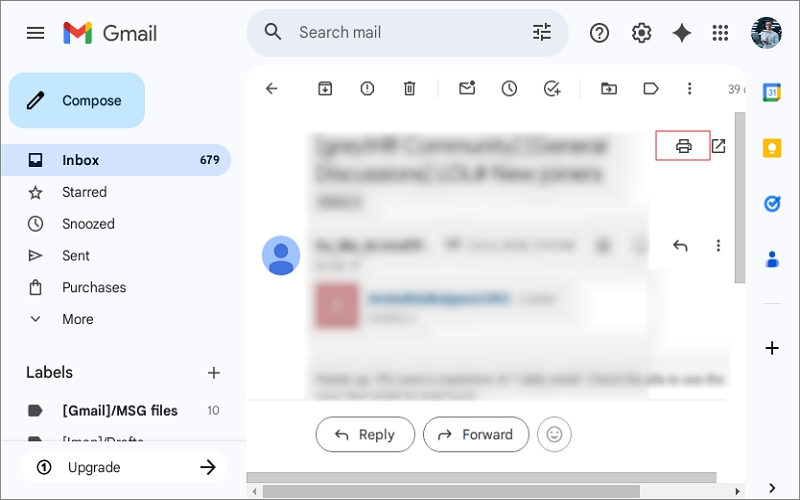
- Click on the Print icon. Alternatively, click on three dots and choose Print. After that, select Save as PDF in the destination option
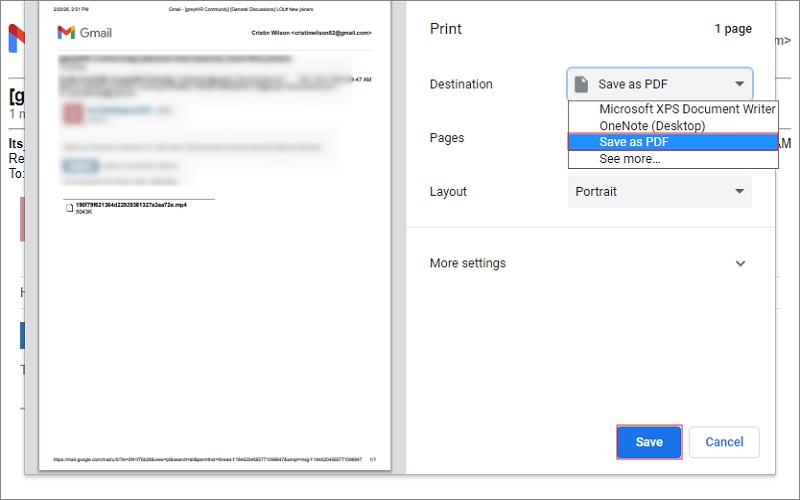
- Click Save and choose your desired location.
Your Gmail email is now saved as a PDF file, but the attachments are not included in the PDF. For attachments, download them separately and save in the same folder where the PDF is saved. This way, you save Google emails to PDF with attachments together.
Note: It is not suitable to convert multiple Gmail email as PDF. If you only need a single email without attachments, this method works fine.
How to Export Google Messages to PDF via Google Takeout?
Google Takeout is a free native tool that allows you to download Google’s data, along with Gmail data, in bulk. However, it does not directly convert emails into PDF format because it saves emails in MBOX format. But you can save them to PDF via an MBOX-supported email client like Thunderbird. Here are the steps to follow:
- Go to the Google Takeout site and log in with your Google account.
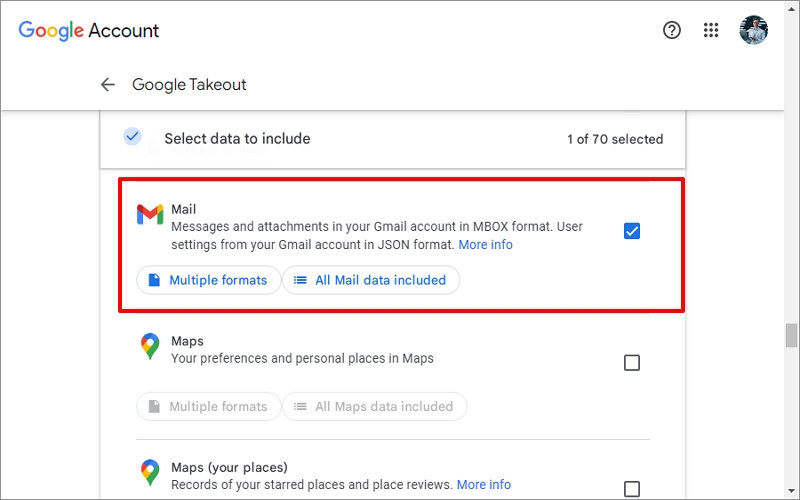
- Deselect all and choose only the Mail option. Click Next Step.
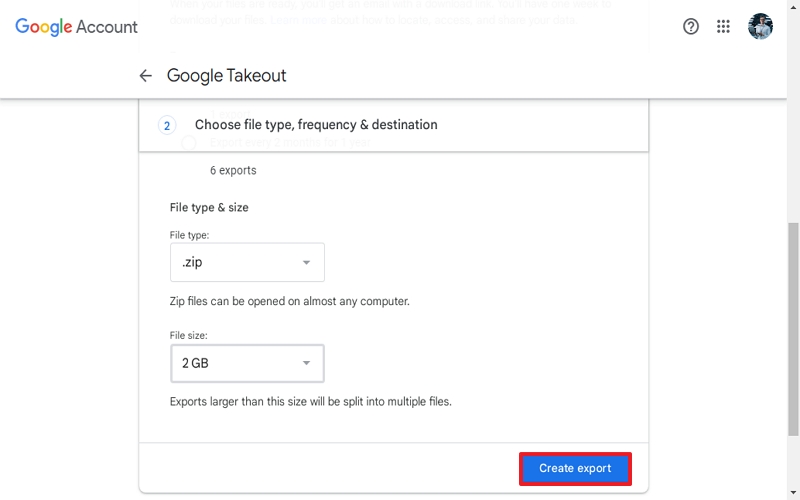
- Choose file, type, and size accordingly. In the destination, choose the Send Download link via email Click Create Export.
- You will receive an email with a download link from Google Takeout. Open the email and download the email backup that will be saved in MBOX format.
- Now, import this MBOX file into Thunderbird or any MBOX-supported email client.
- Once imported, open that folder, select your multiple emails, right-click, and select Print.
- Provide a saving location and file name. Your Google emails are now in a PDF file.
This method is quite useful if you need to convert multiple Gmail email into a single PDF file as well. It adds extra steps, but do remember that the attachment won’t be saved. You’ll need to download that separately.
Note: You can directly do it without using Google Takeout. For that, you’ll need to configure your Gmail account in Thunderbird.
How to Convert Google Emails to PDF Using Microsoft Outlook?
You can also convert Google emails to PDF via Outlook application. For that, you’ll need to configure your Gmail account in Outlook effectively. Once Gmail emails are synced in Outlook, you can download Gmail emails efficiently. Here is the detailed stepwise process.
- Open your Microsoft Outlook, click on the File menu, then tap on Add Account.
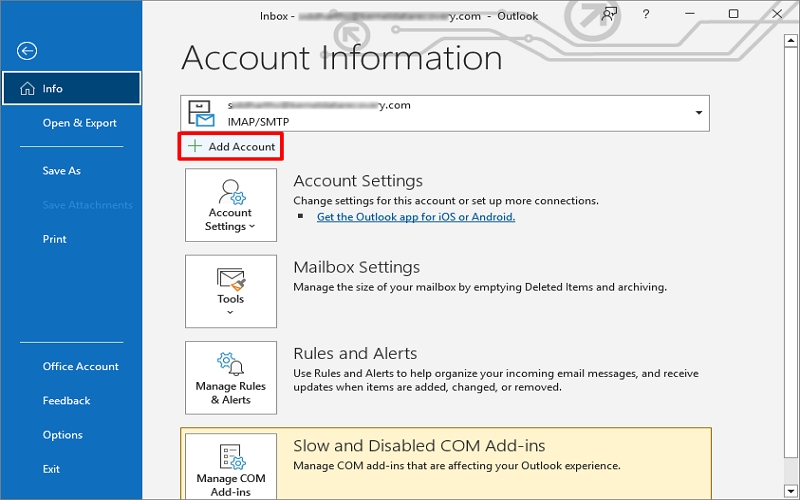
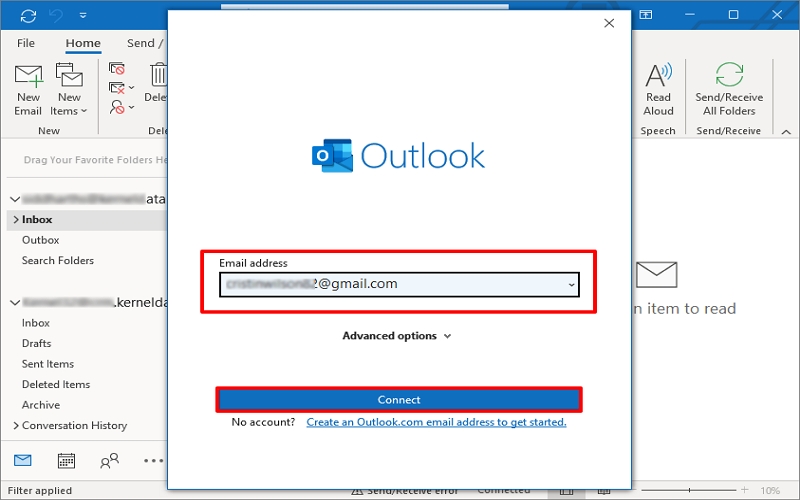
- Enter your Gmail address and click Continue.
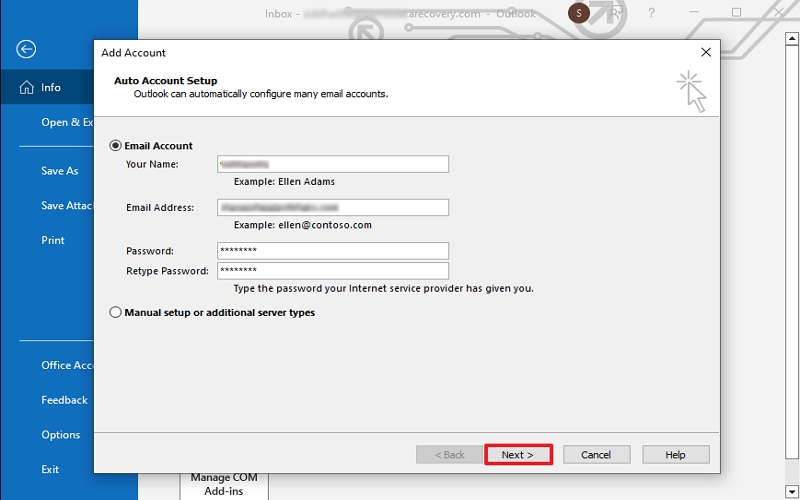
- Enter your Name, Gmail address, and password. Click Next and follow further configuration.
- Once your Gmail is configured, Outlook will sync your Gmail data in Outlook. Now open your folder, select as much email as you want.
- Right-click and select Quick Print.
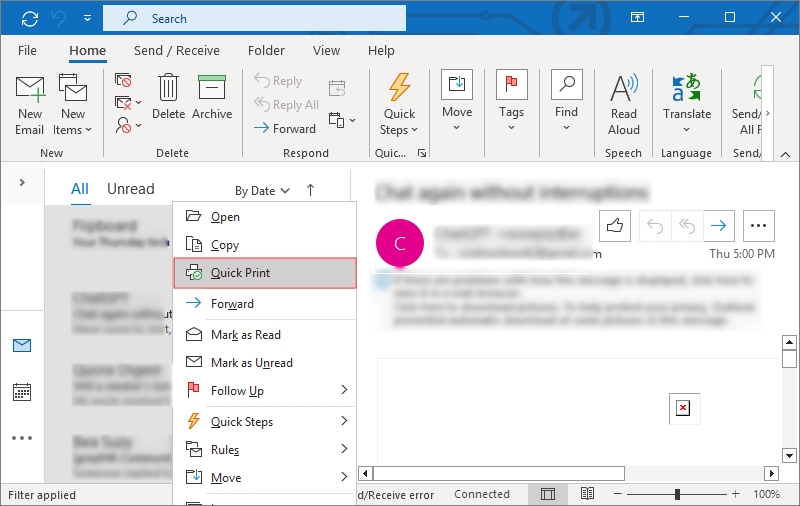
- Specify the saving location and enter the file name. Click Save.
Your Google email will be saved in PDF format, but for email attachment, you’ll need to download it separately from each email message.
Safe Export Google Messages to PDF | Tips to Follow
Due to risks like financial loss, legal penalties, reputational damage, etc., data security becomes more important today for handling email data. So, follow these best practices:
- Configure Gmail credentials only with authentic applications.
- Enable two-factor authentication for login.
- Keep backup copies of your Gmail emails.
- Check PDF output before deleting original emails.
Final Words
The above methods are enough to convert Gmail emails to Office 365. By following them, you can effectively export Google messages to PDF. You must choose the right approach based on your needs to convert Google emails to PDF with attachments.
Gmail’s built-in Print feature works for the conversion of individual emails to PDF, but it does not include attachments in that. Google Takeout exports data in MBOX format, not PDF, so you need to import that into an MBOX-supported email client to save emails in PDF. Outlook can also help convert Google emails to PDF. However, this application allows you to convert bulk emails to PDF. So, choose the one as per your need and convert Gmail to PDF effectively.
Commonly Asked Questions
A: No, Gmail allows email to PDF conversion, but does not merge attachments automatically.
A: Yes. PDF preserves formatting and is universally supported across devices.
A: Not very efficiently with Gmail because it lacks a built-in bulk export to PDF option, but other applications like Outlook or Thunderbird allow you to save bulk Gmail emails in a single PDF with no attachments.