


Email addresses play a vital role in business & professional communication, irrespective of the email clients. With time, it is seen that users look to build a contact list, backup important sender details, or organize professional connections through email addresses. The proper knowledge can make this process smooth & hassle free.
The EmailsKB platform comes with a new article in which you will learn about the free method to extract email addresses from Gmail account. No need to install any advanced tools. Just stick with the blog & try the upcoming methods as provided to get the desired results.
Why do I Extract Gmail Email Addresses?
Let’s look at the possible reasons why you extract email addresses from Gmail account.
- To build an aligned mailing list.
- Helpful in migrating data to another account.
- Make the professional communication smooth.
- Offers structured databases of clients & vendors.
Important Requirements:
- IMAP is enabled in Gmail settings.
- Your Gmail account is configured in Outlook.
- Outlook should be installed on the local system.
- Outlook has fully synchronized your Gmail mailbox.
Free Ways to Extract Email Addresses from Gmail Account using Outlook
Before using the free email address extractor, check out the ‘Need to consider’ section. Once the conditions are fulfilled, proceed with the provided methods.
Need to Consider:
- Sign in to Gmail, go to the gear icon > See all settings > Forwarding and POP/IMAP, Enable IMAP & hit Save changes.
- Configure the Gmail account in Outlook with:
Open Outlook, go to File > Add Account [ With IMAP Setup] & complete the configuration process.
Method 1. Extract Email Addresses from Gmail Contacts via Outlook
It is considered the easiest approach if your Gmail is synced with the Outlook application. You can use it for exporting saved contacts, where you can also get email addresses. Here is the complete stepwise approach to implement the method:
Step 1. Open the Outlook application & go to the File menu.
Step 2. Choose the Open & Export > Import/Export option.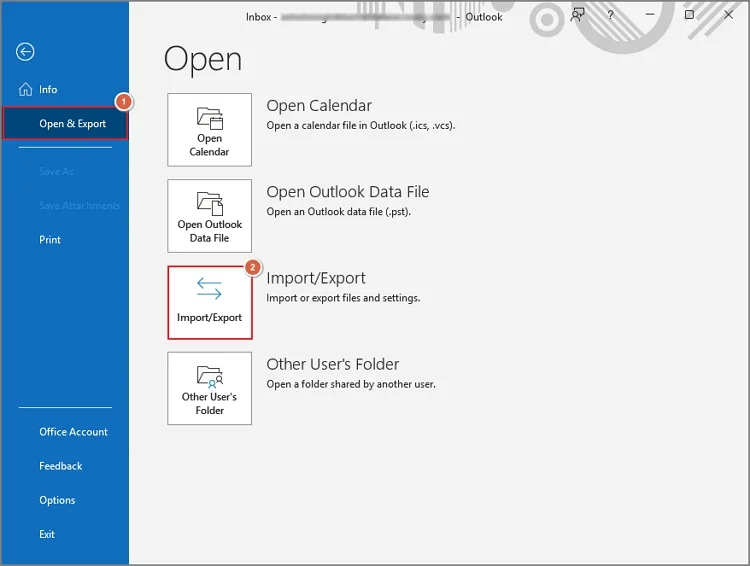
Step 3. Select Export to file & click on the Next option.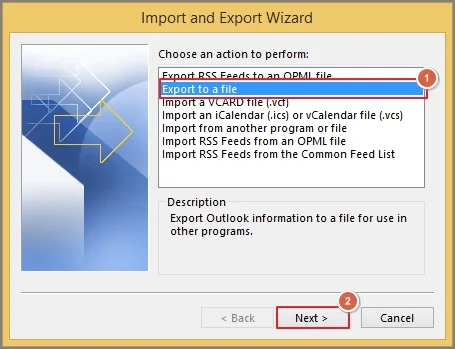
Step 4. Choose Comma Separated Values & hit the Next option.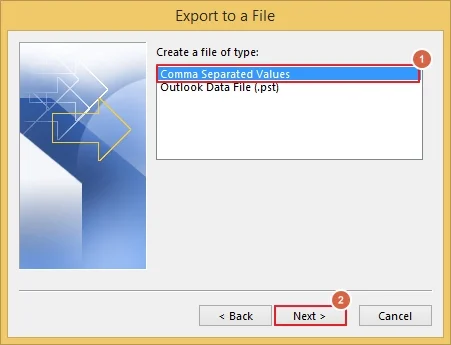
Step 5. Select the desired folder from the Gmail account. Click Next.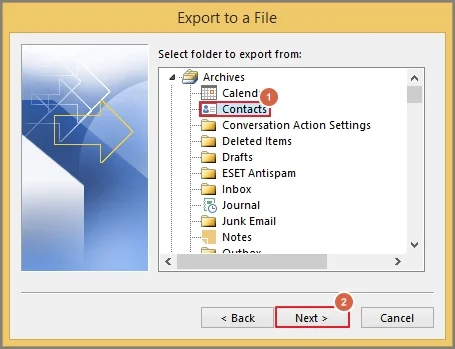
Step 6. Browse the preferred endpoint & tap on Next.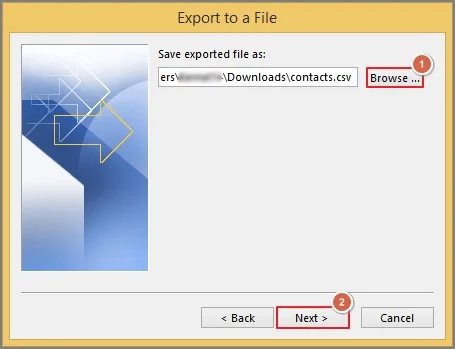
Step 7. Modify the custom fields & click on Finish to complete the extraction process.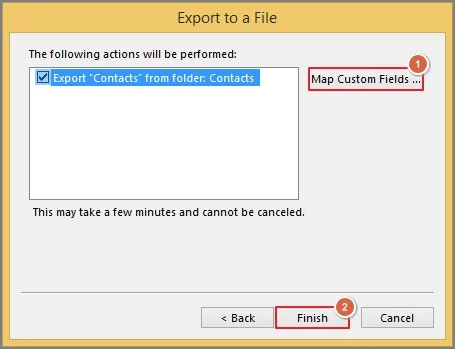
Important to know:
Extract Gmail email addresses that are not saved in contacts:
Open an email in Outlook, right-click on the sender’s email address & choose Add to Outlook Contacts. Once saved, use the above method to extract the desired ones.
Method 2. Copy Email Addresses from the Message Headers
If you want a specific analysis or detailed extraction, this method can be useful for you. It helps in specific needs but is not suitable for large-scale use. Let’s understand how it works:
Step 1. Open a desired email in Outlook.
Step 2. View the email & tap on File.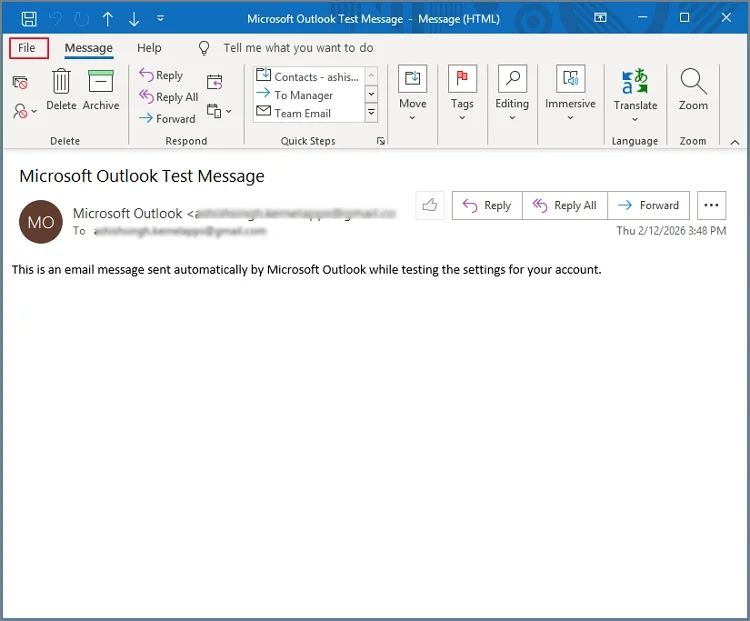
Step 3. Go to the Properties tab in the next section.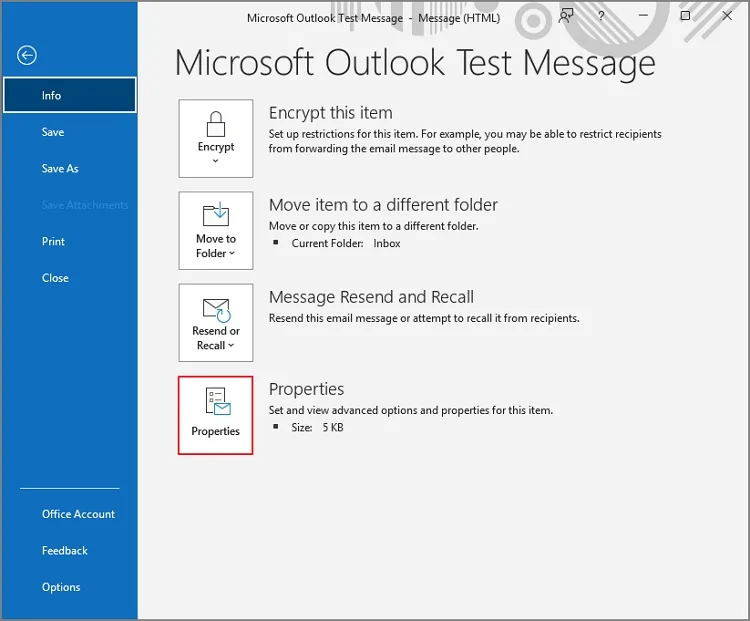
Step 4. Locate the From & Reply to fields under Internet headers.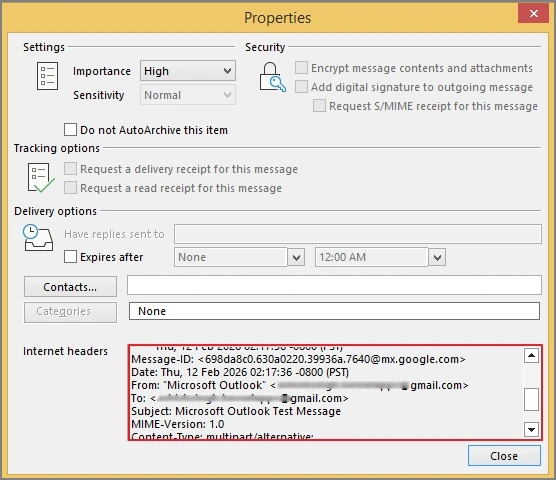
Step 5. Copy them & paste at the needed location.
Method 3. Extract Gmail Email Addresses from Sent Items
Your sent folders contain sender/receiver details that you’ve communicated with. It will help you to collect addresses of clients, partners, or colleagues you have contacted. Follow the steps to implement the process:
Step 1. Launch the Outlook application.
Step 2. Go to the Sent Items, open the desired emails, and copy the recipient addresses.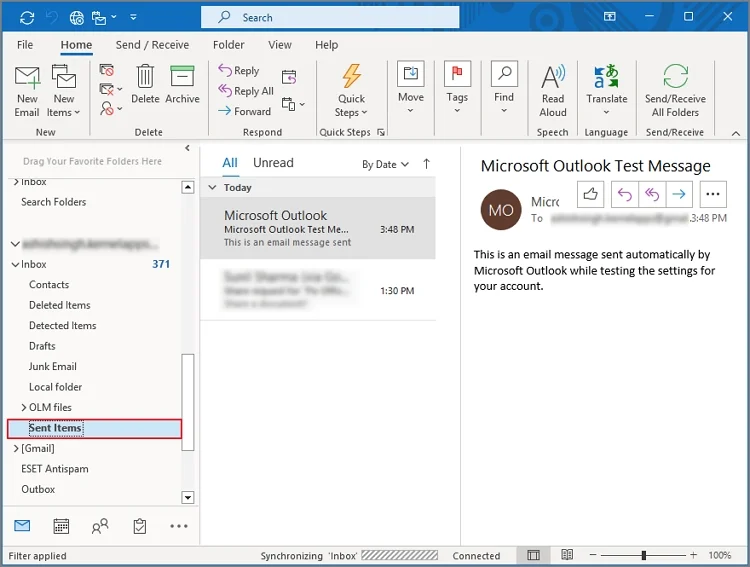
Step 3. Add them to the contact list & then export to the CSV format using the Import/Export feature.
Organize extracted email addresses:
Open the file in Excel, remove duplicates, sort by domain or name, categorize & save a backup copy.
Common Challenges with Solutions
This section will highlight basic challenges that users can face while extracting email addresses from Gmail account using Outlook.
| Challenges | Solutions |
| Gmail contacts are not syncing | Ensure IMAP is enabled & Outlook is updated. |
| Duplicate email addresses | Use Excel’s Remove Duplicate feature after export. |
| Missing email addresses | Only synced or manually added contacts will appear in the contact list. |
Basic Considerations during the Email Address Extraction
Here are some basic considerations that can help you maintain peace after the process:
- Respect privacy & data protection laws.
- Make sure that the exported data is safe.
- Maintain compliance with organizational policies.
- Avoid using extracted addresses for unsolicited emails.
Best Practices for Efficient Gmail Email Extraction
Check out the best practices to extract email addresses from Gmail hassle-free.
- Clean inbox for better filtering & management.
- Maintain a habit of clearing duplicates regularly.
- It is a good practice to create a separate contact folder.
- Sync Gmail fully before starting the extraction process.
Ending Thoughts
With the right approach or built-in Outlook features, users can easily save Gmail emails to computer. The blog has covered all the possible ones with additional info like causes, prerequisites, best practices, challenges, etc. We value your time, which is reflected in our information, i.e., precise & authentic. Follow the steps carefully and you are all set for successful extraction results.