

The Gmail IMAP feature allows users to connect emails to different devices & email clients like Outlook, Thunderbird, Apple Mail, or mobile apps. It helps users to make their inbox unified, updated, and accessible from anywhere.
But when it stops working, users can face different unusual situations like emails not syncing, missing messages, login errors, or outdated inbox content.
Seems frustrating? Relax! EmailsKB platform is known to help IT professionals or users maintain continuity in their workflows with free solutions. Be with this easy guide to fix IMAP.gmail.com is not working issue with easy, simple & effective solutions. All the discussed solutions here are free to use, and easy to perform, which will help you restore synchronization smoothly.
Common Reasons behind “IMAP.gmail.com is not working” Issue
Here, we have provided some common causes behind IMAP-related issues. So, look at them to identify the root cause of the issue:
- Working with the incorrect Gmail or IMAP settings.
- Temporary glitch or server issues from Google’s side.
- Dealing with poor or unstable internet connection.
- Disabled IMAP settings in Gmail can also be the reason.
- Check whether the Gmail Storage limit is crossed or not.
- It can happen that Google blocks due to security concerns.
- Using the outdated email apps or Operating system.
How to Identify IMAP Issues Quickly?
Here, we have provided some common signs that can help you recognize the IMAP issues early, including “IMAP Gmail is not working” issue:
- Inbox stops refreshing.
- Repeated password prompts appear.
- Outgoing emails get stuck in the Outbox.
- You see the message “Can’t connect to server”.
- New emails appear only in the Gmail web, not in your app.
- Often getting connection / authentication / sync issues.
Quick Fixes:
- Work in a stable internet connectivity, as slight network drops can cause sync issues.
- Disable any active VPN or proxy, as it blocks Google sync services.
Free & Easy Solutions to Fix IMAP.gmail.com is not Working Issue
Go with the easy solutions to resolve IMAP Gmail is not working issue for free. Make sure to follow the steps as provided to remove the chances of unwanted errors.
Solution 1. Enable IMAP Settings in Gmail
It is one of the foremost methods, as disabled IMAP settings can’t allow users to work with different email clients. In some cases, IMAP is disabled unexpectedly. So, if this is the case, re-enable it with the following steps:
Step 1. Open Gmail in your browser.
Step 2. Go to the Settings icon and click on the See all Settings option.
Step 3. Navigate to the Forwarding and POP / IMAP. Under IMAP Access, enable IMAP & click on Save Changes.
Solution 2. Check IMAP Server Settings in your Email App
Incorrect Gmail server details also create the IMAP Gmail is not working issue. So, try to verify them with the following details:
| Type | Server | Port | Security | Authentication |
| Incoming Mail (IMAP) | IMAP.gmail.com | 993 | SSL/TLS | Required |
| Outgoing Mail (SMTP) | smtp.gmail.com | 465/587 | SSL/TLS | Required |
Important to know: Also, check the Gmail credentials, like the Password, as its mismatch can also hinder email communication.
Solution 3. Clear Cache & Data from your Email App
It is seen that a corrupted app cache interrupts IMAP syncing. So, clear them and then check the status of the error. Follow the steps below to execute the process on different devices, such as:
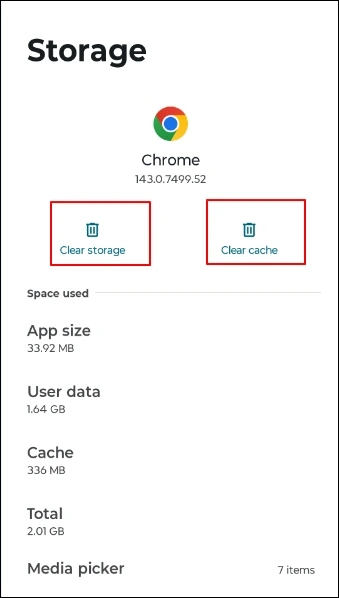
For Android:
- Go to the Settings> Apps> Your Email App> Storage.
- Choose Clear cache & Clear storage.
For email clients like Outlook:
- Re-launch the Outlook application.
- Clear offline cache folders. In general, restarting the application often fixes the cache issue.
Solution 4. Check Gmail Storage Space
In case your Gmail storage is full, it will not fetch any further emails via IMAP. So, it is necessary to check the storage limit of Gmail. If it is full, clear the unwanted ones to create space or buy suitable plans to extend its storage limit. IMAP syncing will resume once the storage space is available.
Follow the steps below to check the limit:
Step 1. Open Google Drive and check the available space at bottom left.
Step 2. Delete unnecessary files, photos, and emails to free up storage.
Solution 5. Allow Less Secure Apps or Use App Password
Older email apps may not be able to meet the security standards of Google. It can lead to IMAP Gmail not working issues. You can check it by following the steps below:
- Open your Google Account Settings.
- Go to Security. Look for less Security Apps Access & enable it if applicable.
Note: Google is slowly removing this option over time. So, its availability may vary.
Solution 6. Remove and Add your Gmail Account Again
It is the last recourse when all the above-discussed methods are not able to fix the issue. You need to reconfigure the account as it can fix minor bugs & glitches and can restore the IMAP connectivity. Go with the following steps to execute the process:
- Remove your Gmail account from Outlook/Thunderbird/ Mobile App.
- Restart the app or device from scratch.
- Add the account again with the correct IMAP settings.
Important to know: Update the SSL encryption certificate, as outdated or invalid ones can break Gmail & other email client connections.
Preventive Measures to Avoid IMAP Issues
These preventive measures can help you to remove the IMAP issues in future, like IMAP.gmail.com is not working issue:
- Regularly check Gmail security notifications.
- Keep updating your email apps and OS regularly.
- Maintain at least 1-2 GB of free space in your Gmail.
- Avoid using outdated email clients and keep a stable network connection.
- Do not change the passwords without updating them in your email client.
Conclusion
The IMAP Gmail is not working issue is a common one, but it can be managed with free, easy, & simple troubleshooting steps. The blog has covered all the free solutions to fix the issue with their complete step-by-step approach. Besides, it provided all the needed information about the concern to make you aware of such issues in future. For such authentic information, do visit the EmailsKB page regularly.