


You can mass delete emails on Gmail at once with Gmail’s built-in bulk selection feature by filtering emails, selecting all conversations that match the search, & deleting them in one click. Gmail allows you to delete thousands of emails together using search operators, labels, or categories. Gmail is a very common application, and there are over 2.5 billion active users who prefer it to manage email conversations effectively. Apart from its high-end & easier usability, many users find difficulties in deleting bulk unnecessary emails in Gmail.
EmailsKB is a trusted platform that offers reliable step-by-step guidance suitable for beginners and professionals alike to solve everyday tech problems. This guide explains all effective and accurate methods to delete multiple emails on Gmail quickly and safely.
Why You May Need to Mass Delete Emails on Gmail?
Usually, promotions, newsletters, spam, old conversations, etc., and other unnecessary messages eat up your inbox space. Nowadays, email overload is a common problem among Gmail users that impacts performance. Fortunately, Gmail helps to delete multiple Gmail messages efficiently and frees up storage space for performance improvement overall.
Since Google offers 15GB of free shared space across Gmail, Drive, Photos, and all other applications, many users face Gmail storage limits. With gradual sending/receiving emails, the inbox gets full, which leads to issues like instability & disrupted email conversations in Gmail. Thus, deleting multiple emails from Gmail is wise to solve this problem. Here are a few more benefits of bulk deleting emails:
- Frees up storage space in Gmail.
- Boosts Gmail inbox speed and performance.
- Reduces distractions during email search.
- Escapes storage upgrade costs & overpaying.
Delete Multiple Emails on Gmail Using Select All Option
For users with Gmail on their desktop (web), this is one of the effective methods to delete all Gmail emails from a specific category or search result page. Here are the steps to follow:
- Open Gmail in your web browser, go to Inbox, Promotions, Social, or any label.
- Mark the checkbox for each email. You can select emails one by one, also.
- Click the Delete icon and confirm deletion if prompted.
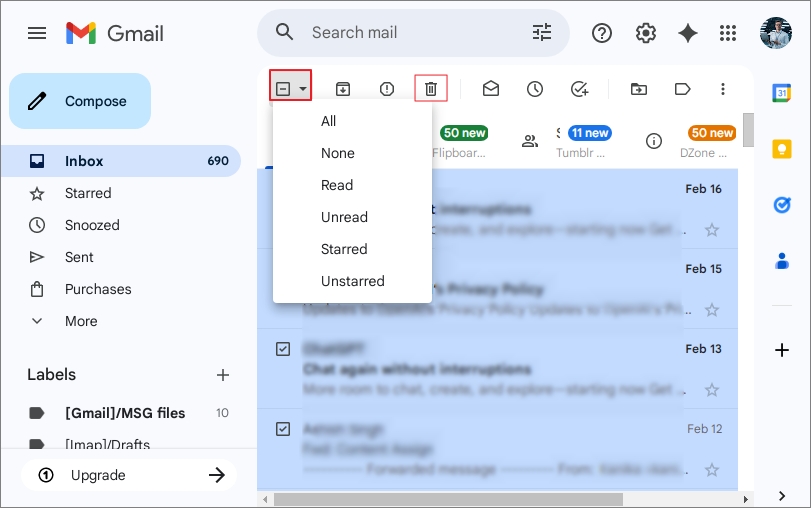
This method helps you delete multiple emails on Gmail, even thousands, but you need to open each page that contains only 50 emails.
Pro Tip: Go to the Trash folder & empty it to permanently delete emails from Gmail and free up space.
How to Mass Delete Emails Using Gmail Search Filters?
Gmail offers advanced search filters to target and fetch specific emails on various parameters like From, To, Size, Attachments, etc. With these advanced search filter options, you can also get and delete specific emails. Just tap on a specific search button like To, From, etc., or Advanced search, and provide the parameter. Once the search is complete, select all emails from the checkbox and tap on the Delete button.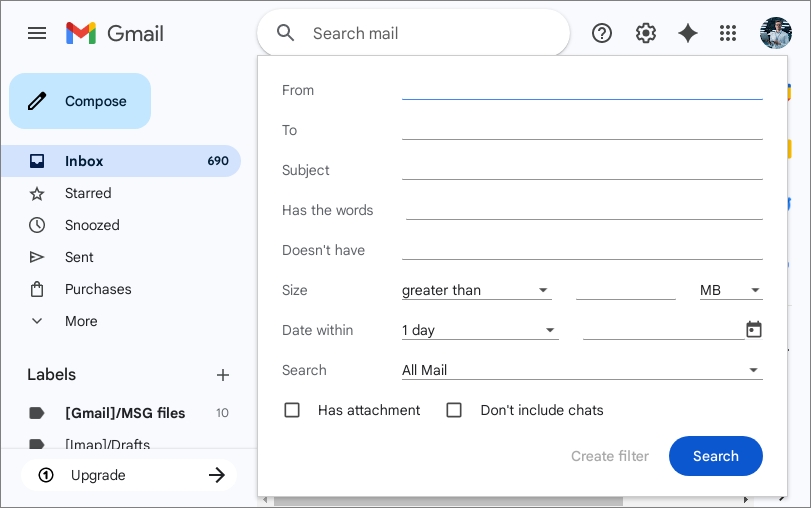
Filters of Gmail to Fetch Specific Emails for Deletion
Gmail provides multiple options to filter out specific emails. However, you can delete those specific email messages easily in just a flash. Some of the Gmail Search filters are as follows:
-
- Date: You can delete old emails before a selected date quickly.
Example: Before:2026/01/01This parameter will display emails before January 1, 2026. Then select emails and delete them.
-
- Sender: You can delete multiple Gmail messages from a specific sender, like newsletters, promotions, or marketing emails.
Example: From: example123@gmail.comSelect all matching emails and delete them in bulk.
-
- Size: Large attachments eat up storage quickly, so this size option helps to find out specified sizes of emails.
Example: Size: 10MBThe size filter option finds emails larger than 10MB. Select and delete them.
Note: There are many more filters, like attachments, status, etc., in Gmail. You can use them yourself to clean your Gmail folder effectively.
How to Delete All Gmail Emails at Once?
Gmail also helps you out if you want to delete all Gmail emails completely. It allows bulk deletion across categories and inbox folders. Here are the steps to follow:
- Open your Gmail (web) and go to the Inbox/folder/label you want.
- Mark the checkbox available at the top right corner.
- Click the Delete button and repeat the same process for labels & pages accordingly.
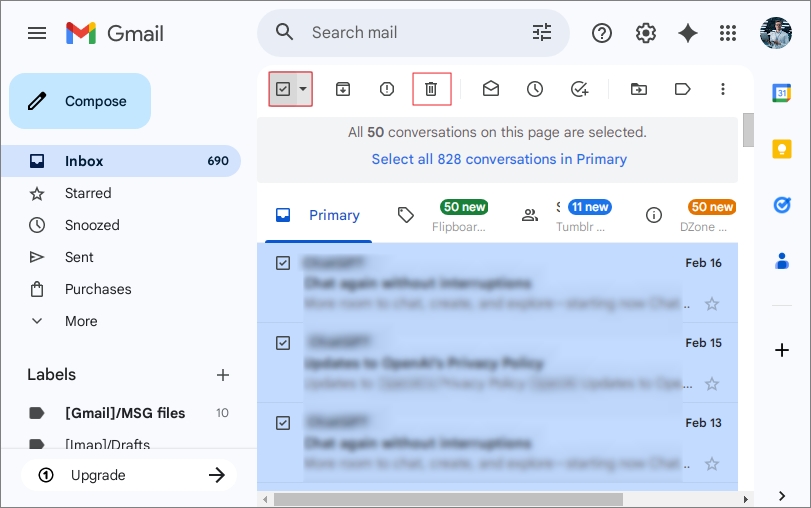
Important to Know: Gmail doesn’t provide a single “Delete Everything” button for the entire account. You can only delete emails category-wise or one by one.
How to Mass Delete Emails on Gmail App (Android & iPhone)?
Since you can’t perform the process to mass delete emails on Gmail mobile like on the desktop but, you can still delete multiple emails manually with ease. For the same, follow the steps below:
- Open the Gmail app, tap and hold one email, and then select multiple emails manually.
- Once selected, tap on the Delete icon.
Important Note: Deleted Gmail emails stay in Trash for 30 days, and you can recover them before permanent removal. You can’t recover them once deleted permanently. Here are the steps to permanently delete emails from Trash:
Go to the Trash folder, click on Empty Trash Now, and confirm the permanent deletion.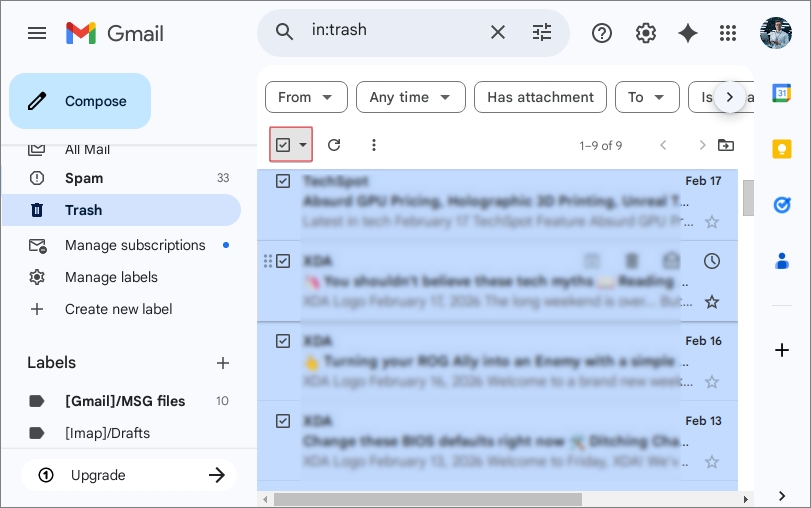
Important Tips to Delete Multiple Emails from Gmail Safely
In Gmail, the bulk deletion process at once can remove even your important emails unknowingly, which may hamper your business/operation. That’s why you’re recommended to follow these tips to avoid mistakes:
- Always use search filters carefully.
- Double-check before emptying the Trash folder.
- Archive important emails instead of deleting them.
- Download backups via Google Takeout if necessary.
- Empty Spam and Trash regularly.
How Gmail Labels Help to Manage Emails Better?
In Gmail, Labels play an important role by categorizing emails before delete, archive, or organize email to avoid hassle. With Gmail Labels, you can:
- Create custom labels.
- Move important emails to folders.
- Delete unwanted categories.
- Apply filters to auto-delete future emails.
Common Issues When Deleting Multiple Gmail Messages
Users face errors when trying to delete multiple emails on Gmail due to sync or browser incompatibility issues. A few possible problems that they face are:
- Storage is not updating immediately.
- Gmail is not selecting all emails.
- Slow performance during bulk deletion.
- Emails are reappearing due to sync issues.
To counter such problems, you can try the solution given below:
- Clear browser cache regularly.
- Disable extensions temporarily.
- Use an updated browser.
- Refresh Gmail after deletion.
Ending Notes
Managing your Gmail inbox and storage does not have to be hard. The above methods are quite simple and easy to follow; even a novice/new user can perform and delete multiple Gmail messages as well. Using Gmail’s bulk selection tools, filters, and categories, you can mass delete emails on Gmail quickly and efficiently. So, take control of your inbox today and enjoy a cleaner, faster Gmail experience.
Frequently Asked Questions
A: Yes, but Gmail desktop shows 50 emails per page, but you can select all conversations that match your search and delete thousands at once.
A: Simply deleting from the inbox / folder / label is not enough to free up storage; you’ll need to delete emails from Trash for permanent deletion.
A: Yes, you recover email from Trash within 30 days of deletion. But after permanent deletion, recovery is not possible.