



Hotmail is now known as Outlook.com, but it is still widely used for personal and professional email communication. On a large scale, users use their Hotmail accounts in Microsoft Outlook for better email management, offline access, and advanced features. However, abnormal situations, either at the users’ end or due to technical glitches, can lead to missing or inaccessible Hotmail emails in Outlook.
Want free solutions to recover Hotmail emails from Outlook? Don’t worry! The EmailKB platform will take care of all your tech-related concerns. Check out this easy walkthrough to get all the relevant knowledge about the issue. Besides, it will help you to provide free & practical solutions to recover deleted Hotmail emails without any hassle.
Important to know: Hotmail accounts are accessed in Outlook using IMAP or Exchange synchronization.
Common Reasons for Missing Hotmail Emails in Outlook
Check out the common reasons behind the missing Hotmail emails in Outlook:
- Outlook sync issues.
- Offline mode enabled.
- Outlook profile corruption.
- Accidental deletion by users.
- Incorrect filter or view settings.
- Emails were moved to another folder.
- Account reconfiguration & password change.
Preliminary Check before Hotmail Emails Recovery
Before moving towards the leading solutions, we have provided some preliminary checks that can help to recover Hotmail emails from Outlook quickly:
- Disable work offline mode.
- Outlook should be connected to the internet.
- Take the help of search to find missing emails.
- Check all folders, including spam, Junk, & Archive.
- Sync & re-add Hotmail account to Outlook manually.
- Verify that the correct Hotmail account is connected.
Top Methods to Recover Hotmail Emails from Outlook
As per several trials & professional recommendations, we have come up with the top seven methods to recover deleted Hotmail emails from Outlook for free. Try the methods carefully to get back your missing emails.
Solution 1. Recover from the Deleted Items Folder
Deleted emails are first moved to the Deleted Items folder, which offers easy restoration if the folder hasn’t been emptied. Check out the steps below to know how you can recover Hotmail emails from Outlook Deleted folder.
Step 1. Open Outlook or go to Outlook.com.
Step 2. Choose the Deleted Items folder. Select the email(s) you want to recover. Right-click & then go to Move > Other Folder.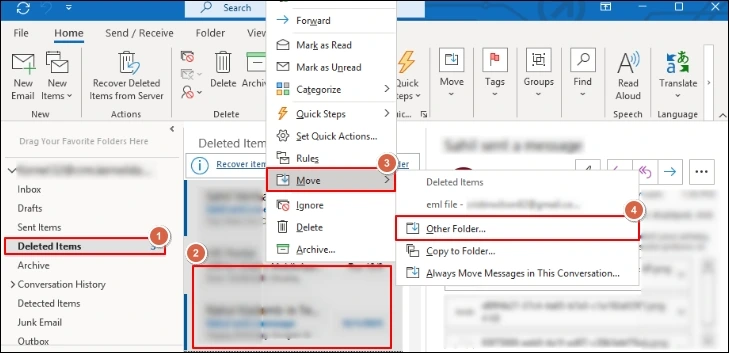
Solution 2. Take help from the Recoverable Items Folder
It offers server-level recovery. Generally, Microsoft keeps emails temporarily on the server for 15-30 days. It can be helpful for users to recover Hotmail emails from Outlook, even after deletion from Deleted Items folder. Follow the steps below to use this utility:
Step 1. Launch Outlook & go to the Deleted Items folder.
Step 2. Navigate to the Recover items deleted from this folder. Select the emails to restore. Tap on Restore Selected Items > OK options.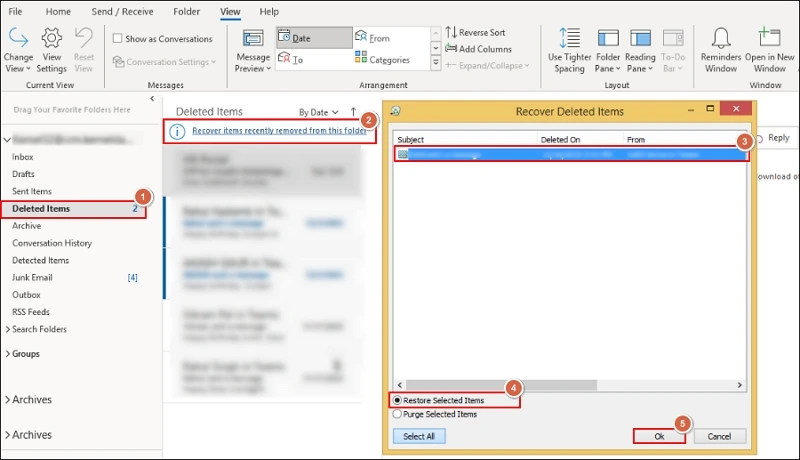
Step 3. It will return to the Deleted Items folder, then move them into the desired folder.
Solution 3. Check the Junk Email & other Folders
Hotmail may incorrectly mark valid emails as spam, which will be placed in the Junk email folder automatically. Check out the steps to restore them successfully:
Step 1. Access the Junk Email folder in the Outlook application.
Step 2. Select the missing email(s) & right-click on it. Select Junk > Not Junk.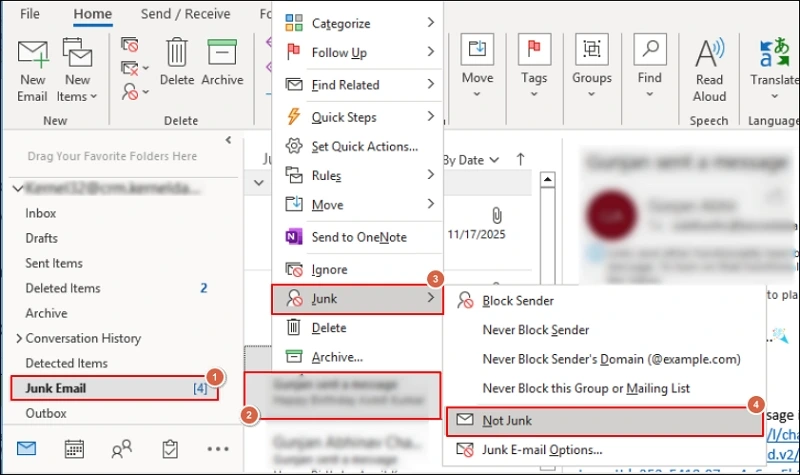
Solution 4. Restore from a PST Backup File if Available
If you have previously exported Outlook data, emails can be recovered from a PST file. You can go with the following steps to execute the process:
Step 1. Launch the Outlook application & go to the File option.
Step 2. Choose the Open & Export & tap on the Import/Export option.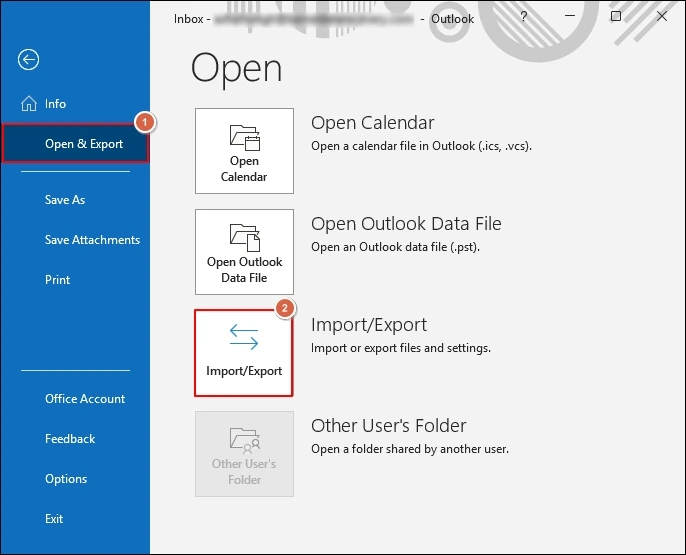
Step 3. Choose the Import from another program or file & hit the Next option.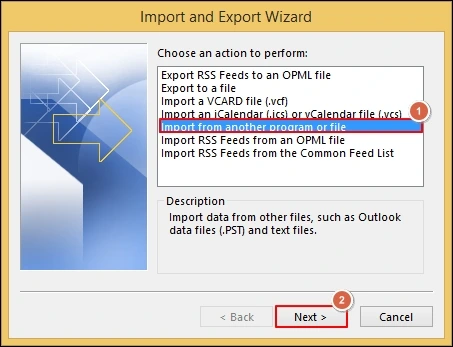
Step 4. Select the Outlook data file(.pst) & click on the Next option.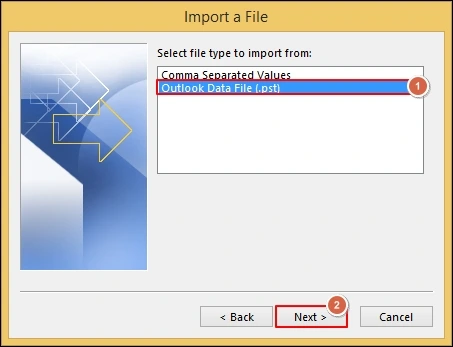
Step 5. Browse the desired PST file with the provided Options. Hit the Next option.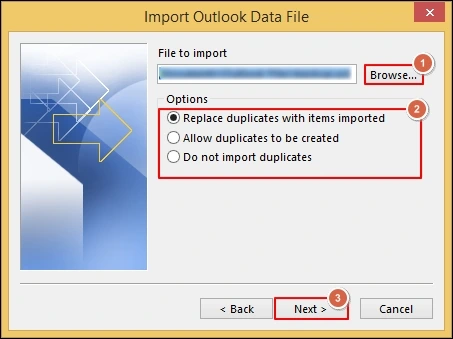
Step 6. Follow the upcoming instructions carefully. Once the file is imported, drag recovered emails into the Inbox folder. Then, check whether the missing Hotmail emails have been recovered or not.
Solution 5. Verify Inbox Rules & Automatic Deletions
The applied rules & regulations may automatically move or delete incoming Hotmail emails. Here are the steps to check the rules in Outlook.
Step 1. Open Outlook & go to the File menu.
Step 2. Navigate to the Manage Rules & Alerts. Review all the rules.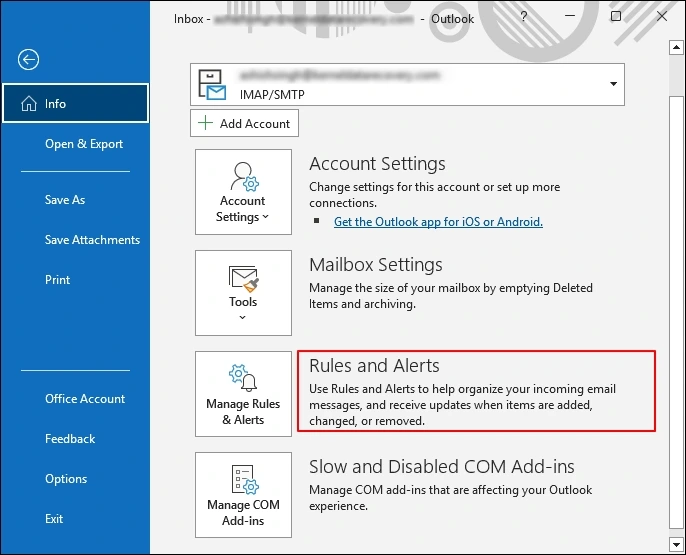
Step 3. Disable the unwanted or suspicious rules & check folders affected by rules.
Solution 6. Disable Filters & Reset View Settings
Sometimes, improper filters & view settings may hide emails. So, this section will help you to check them with the following steps:
Steps to clear the filter:
- Open the affected folder.
- Click on the View > View Settings.
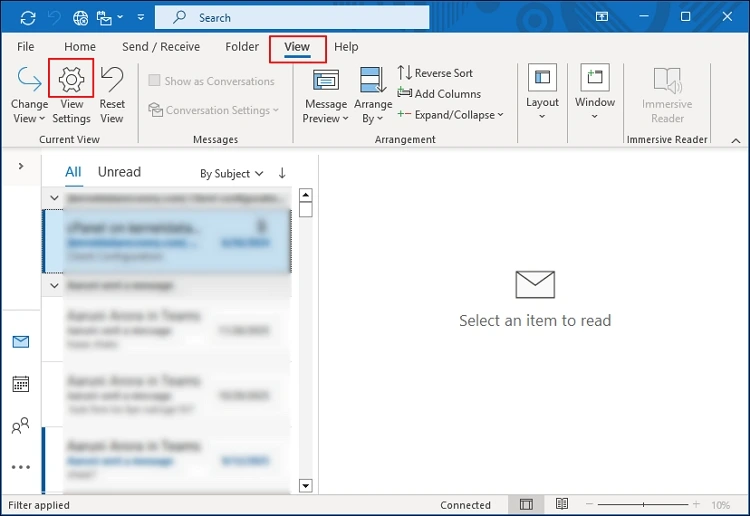
- Select Filter> Clear All. Then, apply changes.
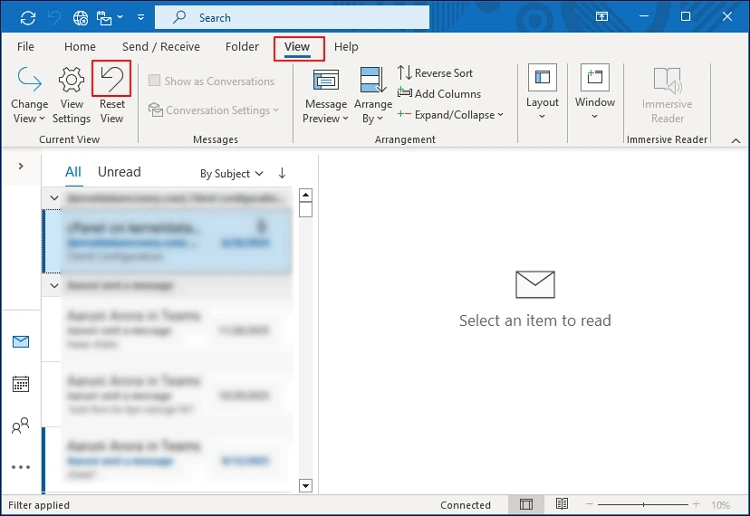
Steps to reset view settings:
It generally fixes the visibility issues.
- Go to View> Reset View.
Solution 7. Contact Microsoft Support
It can be the last solution to recover Hotmail emails from Outlook when everything else fails. Microsoft may assist you with email recovery in cases of hacking, sync failure, or system errors.
Here, we take help from Microsoft’s account recovery form. You will get an update within 24 hours after the form submission. Recovery is not guaranteed, but this is the only official backend option.
Note: If two-step verification is already enabled, then you can’t recover Hotmail emails with this method.
- Search to account.live.com/acsr & provide the Hotmail address to recover.
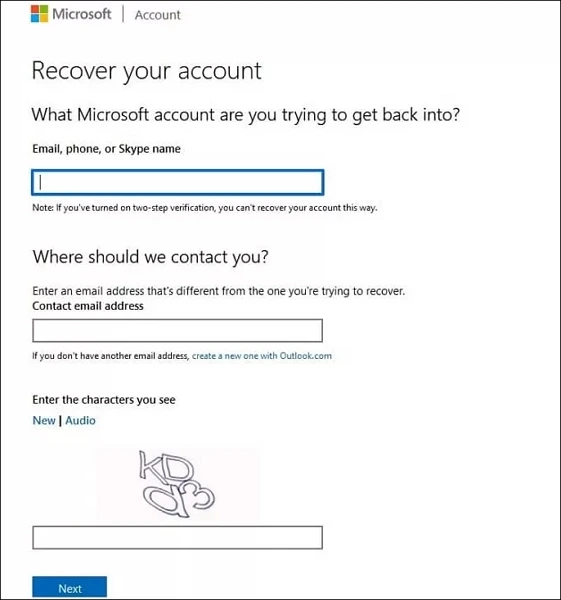
- Enter the new email ID through which Microsoft will contact you. Provide the security code and click on the Next
- Follow the further instructions to complete the process.
- Act as soon as possible for the best results.
- Permanently deleted emails cannot be recovered if they go beyond the retention period.
Best Practices to Prevent Hotmail Email Loss in Outlook
Look at the best practices that can help safeguard your emails from several inconsistencies.
- Keep Outlook updated.
- Enable automatic synchronization.
- Avoid frequent account removal practices.
- Regularly check the junk, archive, or spam folder.
- Do not empty the Deleted Items folder unnecessarily.
Wrapping up
The “recover Hotmail emails from Outlook” process often looks simpler than it appears. In most scenarios, emails are not lost but misplaced due to improper filters, sync issues, or accidental deletion. With Outlook’s built-in recovery option, it can be restored for free. So, we have covered all the necessary information to handle the concern. Be with the EmailsKB platform to get easy & real solutions to daily technical problems.
Frequently Asked Questions
Usually, it is kept for 30 days, which depends on the server policies.
No. You can recover deleted Hotmail emails only within the recoverable period.
No. The emails stored on the server will re-sync once the account is added.