



Email loss in Outlook can be stressful, especially when messages appear to be permanently deleted. There are scenarios where the emails get deleted accidentally, either permanently or temporarily. 100% guaranteed recovery in case of permanent deletion is not possible. But still, certain methods can help users recover permanently deleted Outlook emails.
EmailsKB is a well-known platform since its launch to resolve these kinds of tricky tech queries by providing free solutions. So, go with this easy walkthrough to understand the concern completely, along with the practical approach to recover permanently deleted emails in Outlook. Let’s start the discussion by knowing the meaning of permanently deleted Outlook emails.
When is an Email Considered Permanently Deleted?
In Outlook, an email is considered permanently deleted when:
- It is removed from the “Deleted Items” folder.
- Shift+ Delete was used.
- The account’s retention period has expired.
Important to know: In case of soft deletion, you can go through the Microsoft support Solution to recover and restore deleted items in Outlook directly if they are in the retention period.
Free Methods to Recover Permanently Deleted Outlook Emails
Here, we will provide all the possible methods to recover permanently deleted emails in Outlook. There can be some direct or indirect ones. So, try them accordingly.
Solution 1. Use the Recoverable Items Folder in Outlook
It is considered the most effective or direct method amongst all to recover permanently deleted Outlook emails. Since Outlook [desktop version] or Outlook.com stores deleted emails on Microsoft servers for a limited time (usually 14-30 days), users can try this method to restore them. Here are the steps to recover permanently deleted emails in Outlook:
Step 1. Launch Outlook.
Step 2. Go to the Deleted Items folder. Search for the Recover items recently remove this folder. Choose the desired emails to restore. Click on Restore Selected Items > OK.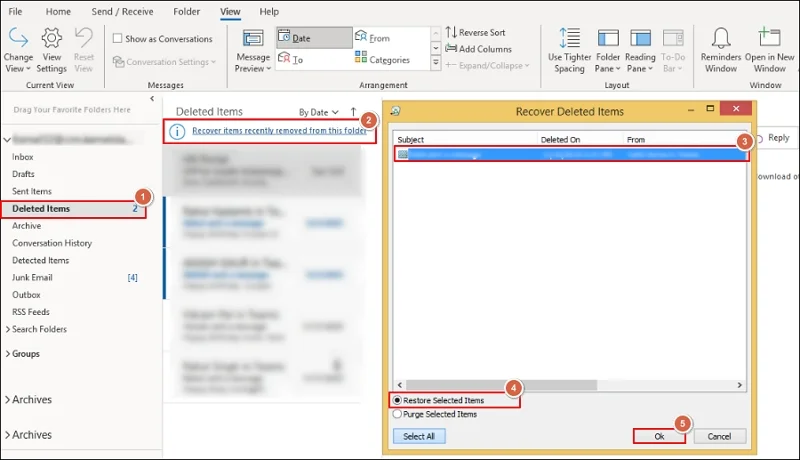
Step 3. Outlook will start the recovery process. Once it is completed, recovered emails will appear in the Deleted Items folder. Go to this location & move the desired emails to the preferred location.
Note: You can apply the same process if you are using Outlook.com for email communication.
Solution 2. Restore Emails from a Local PST Backup {If Available}
Look at this alternate method to recover permanently deleted Outlook emails. Here, we will take the help of previously backed-up or exported Outlook data. If you have done it before, then restore emails from them. Here are the steps for this process:
Step 1. Open the Outlook application & tap on the File menu.
Step 2. Click on Open & Export > Import/Export.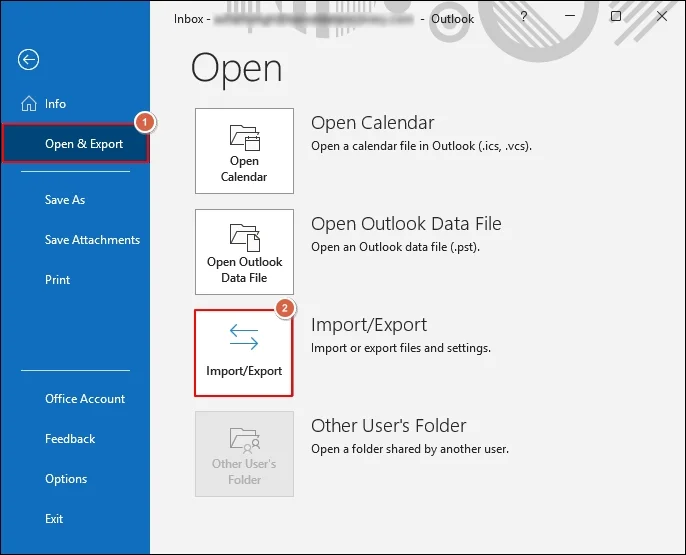
Step 3. Select Import from another program or file. Click Next.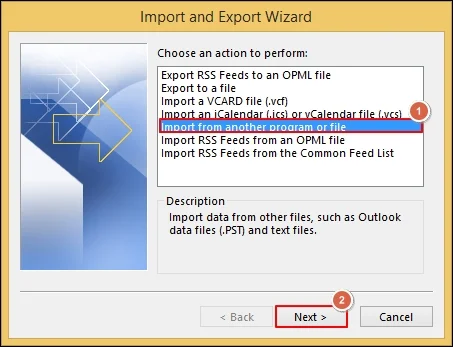
Step 4. Click on Outlook Data file (.pst) > Next.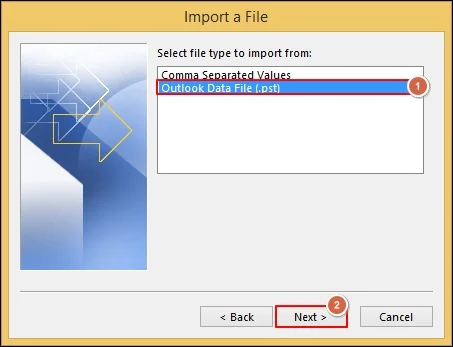
Step 5. Browse the location of the backed-up PST file with the suitable Options. Hit Next.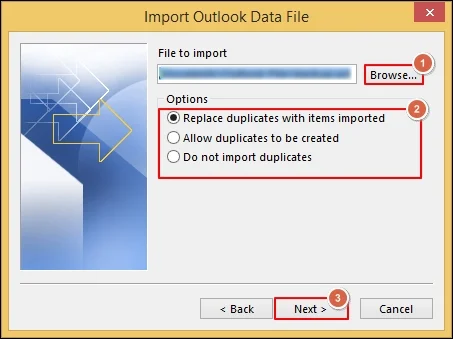
Step 6. Follow further instructions to recover deleted emails in Outlook.
Solution 3. Recover Emails from Another Synced Device
It is seen that sometimes email may still exist on a device that hasn’t synced the deletion yet. This method can be suitable for phones, tablets, or older systems with delayed sync. Here are the steps below to recover permanently deleted emails in Outlook:
Step 1. Disconnect the device from the internet.
Step 2. Open the Outlook application or the Mail App.
Step 3. Locate the Missing emails (if available) & move them to a new folder.
Step 4. Reconnect to the internet to sync.
Solution 4. Check Archive, Junk, & Other Folders
Emails are often mistaken as deleted when they are moved automatically. It can be beneficial for users to verify the folders [Archive, Junk Email, All Mailboxes & other custom folders] by using the sender email or keywords in the search bar.
Important to know: With the undesired inbox rules, your email may be deleted or moved without notice. So, turn off the suspicious rules by going to the File > Manage Rules & Alerts sections.
Solution 5. Contact Microsoft Support [Free Assistance]
It doesn’t guarantee you 100% successful recovery, but this is the only official back-end option. Since Microsoft may help in cases of mailbox corruption, sync errors, or account compromise, you can take help from them with the following steps:
Note: Make sure that you didn’t have two-factor authentication.
- Go to account.live.com/acsr & provide the Outlook email addresses to recover.
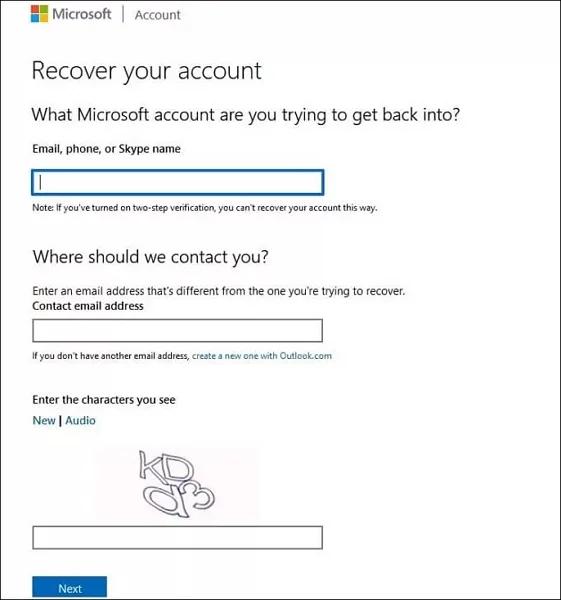
- Provide the new email ID through which Microsoft will contact you. Enter the security code & tap on Next.
- Go with further instructions to complete the process.
Key points:
- If you are going with the following cases, then free recovery is not possible:
- Emails deleted beyond Microsoft’s retention period.
- Data overwritten by long-term syncing.
- Emails removed from account closed long ago.
- Items not included in the backups or archives.
Tips to Avoid Permanent Outlook Email Loss
Here are the best practices that can help users avoid permanent email loss situations in the future:
- Avoid using the Shift + Delete & review rules periodically.
- Act quickly when you find out about the missing Outlook emails.
- Check Microsoft Outlook’s retention policies & update accordingly.
- Try to enable automatic archiving while using the Outlook application.
- It can be considered good practice if users take PST backups regularly.
Ending Thoughts
Outlook deleted emails recovery is possible if users act at the right time with the correct method. Hopefully, the blog has provided all the practical & workable approaches to recover permanently deleted Outlook emails successfully. Be with the EmailsKB platform to get these easy solutions to the daily tech-related issues.