

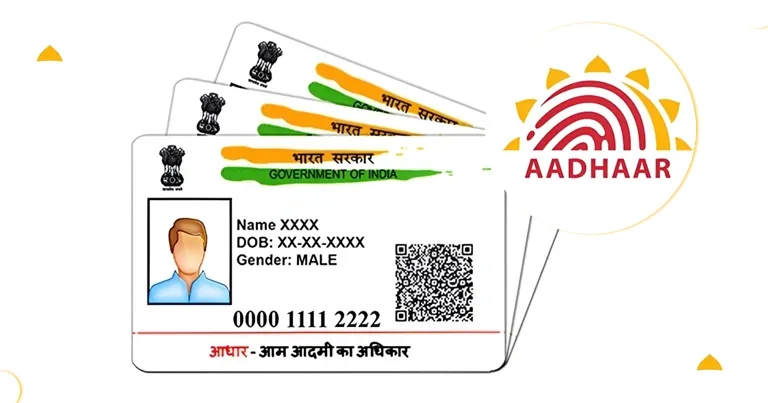
You cannot remove password from Aadhaar card official PDF (E-Aadhaar) issued by the Unique Identification Authority of India (UIDAI). But you can unlock it securely after download using the correct password format or save an unlocked copy for personal use. However, the process is simple; many of the Aadhaar holders don’t know the same.
EmailsKB is the trusted platform for reliable digital solutions and recommends only official and safe methods. In this complete guide, we’ll share reliable and working methods to unlock password-protected Aadhaar PDF files with your full personal data protection. Let’s get started!
Why is E-Aadhaar Password-Protected and How to Open It?
Almost every organization or individual faces malware, phishing scams, unsecured networks, or physical theft at least once a year. And many of them report that the important data is lost along with the Aadhaar card. To prevent your personal identity details (Aadhaar number, date of birth, address, and other personal data) from unauthorized access, the UIDAI keeps the e-Aadhaar file password-protected.
However, UIDAI also encrypts the PDF to prevent misuse if the file is shared or downloaded on public systems, but allows it to be opened with a secure password.
As per the UIDAI guideline, the E-Aadhaar password will be 7/8 characters in length. The format for E-Aadhaar password is: First 4 letters of name (in CAPITAL letters) + Year of Birth (YYYY).
- If the Aadhaar holder has a name of only three letters (like Ria Sharma) & the year of birth is 1995, then the password will be RIA1995.
- If the Aadhaar holder has a name of only four letters (like Devi Bejoy) & the year of birth is 1995, then the password will be DEVI1995.
Step-by-Step Guide to Remove Password from Aadhaar Card or E-Aadhaar
UIDAI doesn’t recommend unlocking the E-Aadhaar original file, but you can unlock it and save a password-free copy for personal use. Here are the methods you can use to make your E-Aadhaar password-free:
Method 1: Remove Password from E-Aadhaar Using the Correct Password in Android
You can open E-Aadhaar PDF file only with the correct password. If you’re the one who knows the password (first four letters of name and year of birth) correctly, then follow the steps below to open your Aadhaar PDF.
- Visit UIDAI and download your e-Aadhaar.
- Once downloaded, open that PDF file with the password. Click Submit to unlock.
- After opening, print the Aadhaar again and save a new copy of the PDF file.
The new copy of Aadhaar PDF won’t ask for a password. This method does not remove e-Aadhaar password permanently, but it gives you full access.
Method 2: Use Google Chrome to Remove Password from Aadhaar Card
You can also remove password of E-Aadhaar PDF file via Chrome, which is another free and effective method. Here are the steps to follow:
- Right-click the downloaded Aadhaar PDF and tap on Open with Chrome
- Enter the password as guided by UIDAI. The PDF file will be opened.
- Once opened, click the Print icon and select Save as PDF. Click Save.
The newly saved PDF file will not require a password to open E-Aadhaar. You can open it anytime, anywhere without password.
Note: This method will only work if you have unlocked the E-Aadhaar document file using the correct credentials first.
Method 3: Unlock password-protected Aadhaar PDF files Using Adobe Reader
If you want to unlock password-protected Aadhaar PDF files and keep a version without a password, follow this stepwise process:
- Open the Aadhaar PDF using the password in Adobe Acrobat. Once opened, tap on File.
- Click on Print and choose Microsoft Print to PDF or “Save as PDF. Click Print.
- Specify the saving location to save the new PDF file.
Now your newly saved PDF file will not ask for a password; it is a completely password-free file now!
Is it Possible to Unlock Aadhaar PDF Password Permanently?
No, it is not possible to permanently remove the official encryption added by UIDAI in the original e-Aadhaar file. However, you can save an unlocked copy for personal use, print a physical copy, & store it in a secure digital vault. It is also advised to avoid unreliable sources or Aadhaar password remover websites, because they may steal your identity data and use it for unlawful purposes.
Is It Legal to Remove Password from Aadhaar Card?
Yes, it is legal to create a password-free copy for personal use only, but doing the same requires the correct password. Besides that, modification in Aadhaar details, tampering with UIDAI-issued documents, or manipulating identity information is illegal under the Aadhaar Act, 2016, and is a punishable offence. So, always use safe and secure methods to make changes or remove passwords in PDF files.
Common Mistakes While Unlocking E-Aadhaar PDF File
Several users face different types of issues while trying to remove e-Aadhaar password. Here are common mistakes they often make:
- Wrong Password Format: E-Aadhaar holders often make mistakes while entering passwords. So, use only capital letters (the first four of the first name), and the exact year of birth with no spaces between letters and digits.
- Name Mismatch in Aadhaar: Many users have a wrong name in Aadhaar rather than their real name. E-Aadhaar password doesn’t care for your original or mismatched name. It only accepts the password on the basis of the printed name on the Aadhaar card. If your Aadhaar has a different spelling than your real name, use the exact spelling printed on your Aadhaar card.
- Forgotten Year of Birth: It is another cause of the issue during password removal. Check your Aadhaar physical card or UIDAI portal for the correct birth year, then try again.
- Store the E-Aadhaar PDF file in a password-protected folder to prevent unauthorized access.
- Avoid sharing E-Aadhaar files via WhatsApp or email unnecessarily.
- Don’t upload E-Aadhaar on public websites or forums.
- Keep a printed copy for offline use instead of a password-free file.
Note: Numerous websites claim that they can remove Aadhaar PDF password. If you look at them, consider them as a red flag because they may store your Aadhaar details, misuse your identity, or inject malware into your file without your consent. Since the Unique Identification Authority of India issues Aadhaar, your data is extremely sensitive. Be cautious and prevent yourself from being a victim of any fraud or false accusation.
Best Practices After Removing E-Aadhaar Password
Your identity security is your own responsibility. Once you remove password from Aadhaar card (by saving a copy), follow these safety tips:
Conclusion
Now you know enough helpful methods to unlock password from E-Aadhaar file. However, it is impossible to remove password protection completely from the original e-Aadhaar file issued by UIDAI. Instead, you can easily unlock password-protected Aadhaar PDF files with a correct password, open them, and save a new unlocked version. Do remember to avoid using suspicious online password remover websites or tools. Your Aadhaar contains highly sensitive identity information so, handle it effectively with care.