


When we talk about personal or professional email communication, Gmail can be the first name that comes to mind. Since Gmail is often used for important conversations, documents, & records, many users prefer to save Gmail emails to the computer’s hard drive. It can be due to various reasons like offline access, personal backups, legal documentation, or long-term storage.
Here, the EmailsKB platform has come up with a new write-up to provide real solutions to save Gmail emails to computer’s hard drive. Be with the blog & get all the useful insights.
Download Emails from Gmail Account: Know Why?
With the save Google mail to computer hard drive process, users can get several benefits, like:
- Safety against accidental deletion.
- Helps in long-term archiving & storage.
- Offers easy sharing to non-Gmail users.
- Provides offline access to the important emails.
- Store email as evidence for work or compliance.
- Helps in improving Gmail’s overall performance.
Things to Know before Saving Gmail Emails
The following section will help to bring clarity to your mind before saving Gmail emails:
- Built-in options work best for basic backup needs.
- Saving emails individually is suitable for small volumes.
- Gmail doesn’t provide a direct “save to computer” option.
- Attachments & email formatting may vary with the methods.
Top Methods to Save Gmail Emails to Computer Hard Drive
After several attempts, we have come up with the top four free manual methods to save Google mail to computer’s hard drive. Usage of them varies with the user’s needs. Let’s explore one by one:
Way 1. Save Gmail Emails as PDF using the Print Method
It is considered the simplest & common method. The method is suitable for important conversations, legal or official records, or the emails that you need to be shared easily. Follow the steps below to know how to execute the process:
Step 1. Open Gmail in the web browser.
Step 2. Open the needed emails that you want to save. Tap on the three dots [More options] & select Print.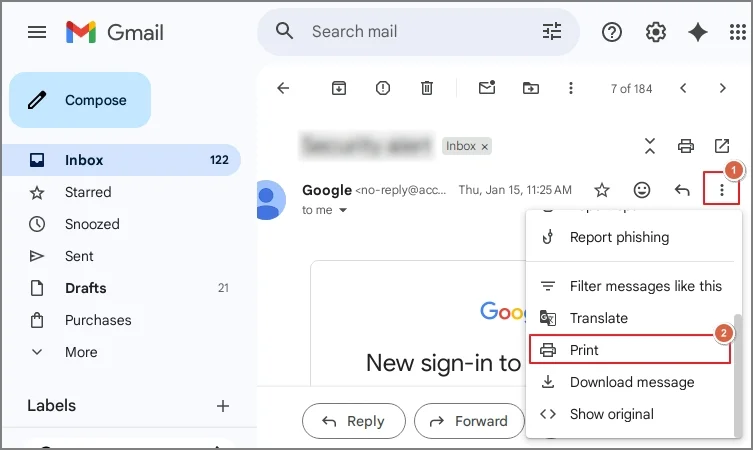
Step 3. Choose the Save as PDF option & then tap on the Save tab.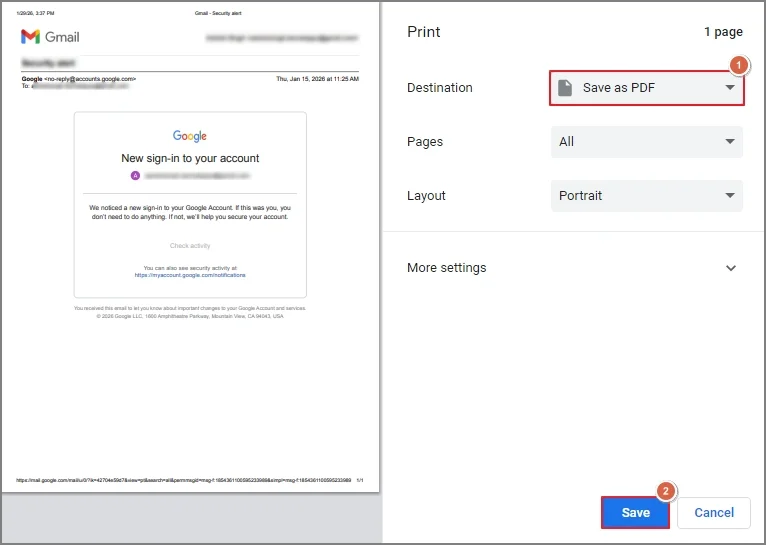
Step 4. Browse the saving location in your hard drive & tap on the Open option.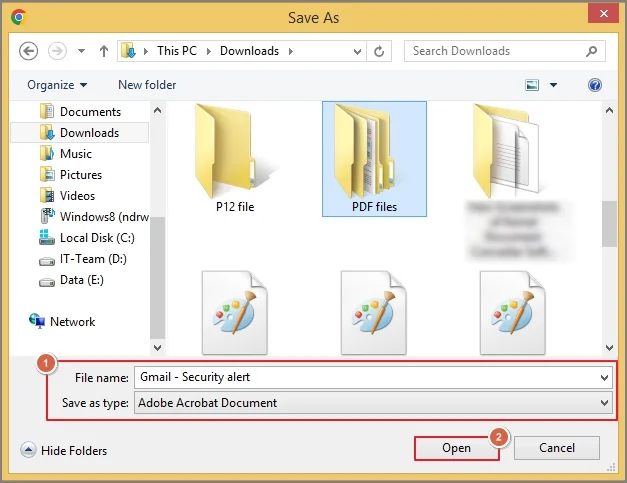
Important to know: If your email has attachments, then you can save them separately with the following steps:
Open Gmail email > Scroll attachment section > hit Download & provide desired location.
Way 2. Save Gmail Emails as HTML Files
This method is preferable when you want to save emails, as the links should be active or formatting intact. Since HTML is a web page format, saving Gmail emails in HTML format will retain all its characteristics the same as the source. Here are the steps to implement the process:
Step 1. Open the desired Gmail emails in the web browser.
Step 2. Right-click on it & click on the Save As option.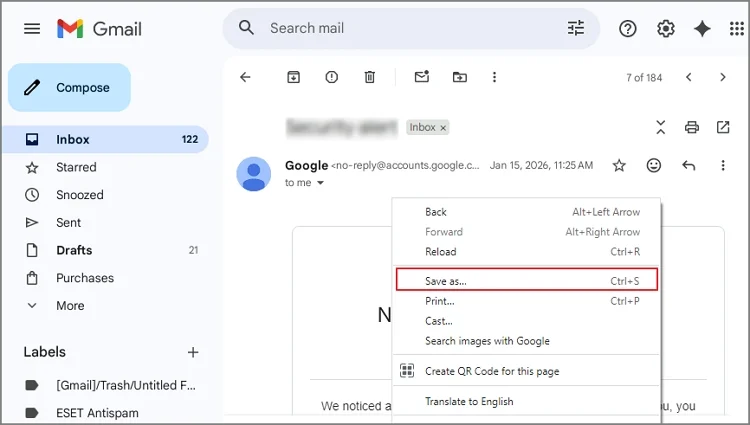
Step 3. Provide the needed endpoint & ensure that the saving format is “Webpage, HTML Only”. Select the Save option.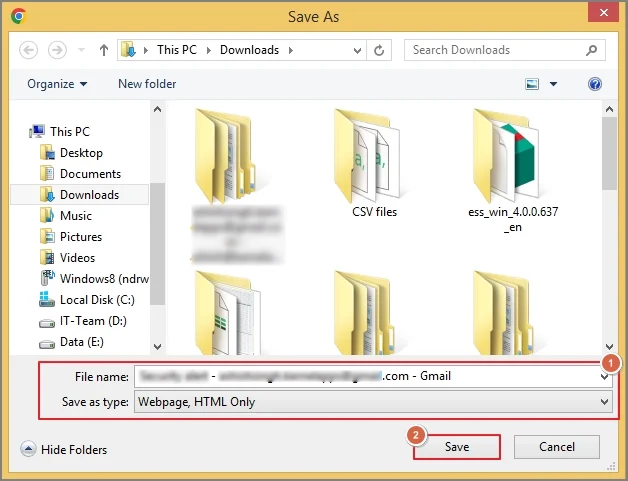
Way 3. Save Gmail Emails with a Copy & Paste Operation
When you need only text, you can go with this method. You need to copy the text & paste it into the suitable text editor, Word document, & Notepad. Then, save it on the hard drive accordingly. It is helpful when you need notes or reference material to maintain continuity in the workflow.
Way 4. Download Gmail Emails using the Google Takeout
In this method, we will use Google’s built-in backup utility, i.e Google Takeout, to quickly extract email addresses from Gmail to the computer’s hard drive. With this utility, users can download Gmail emails in bulk without any hassle. Let’s understand its complete stepwise approach:
Important to Know:
Google Takeout downloads emails from Gmail account to your local drive in the MBOX format that needs specific email clients to access. That’s why this method is suitable for the backup process, not for daily viewing.
Step 1. Log in to the Google account with the required ID & then navigate to takeout.google.com.
Step 2. Locate & select the Mail option after deselecting all. Verify the available checkmarks.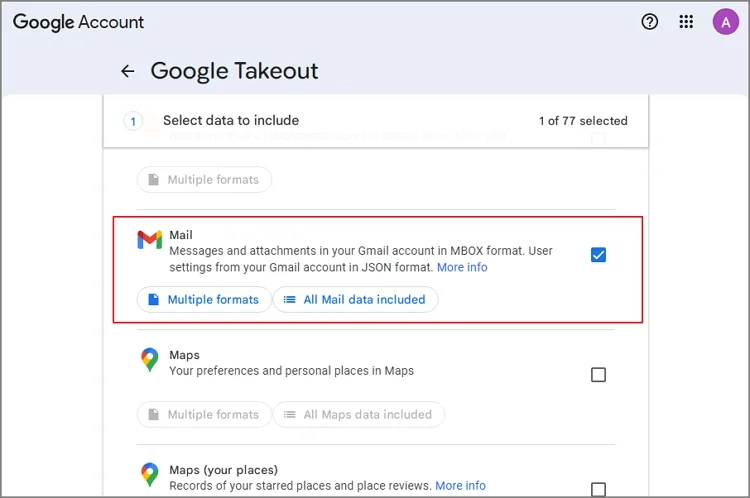
Step 3. Hit the Next option. It will land you on the choose file type, frequency, & destination section.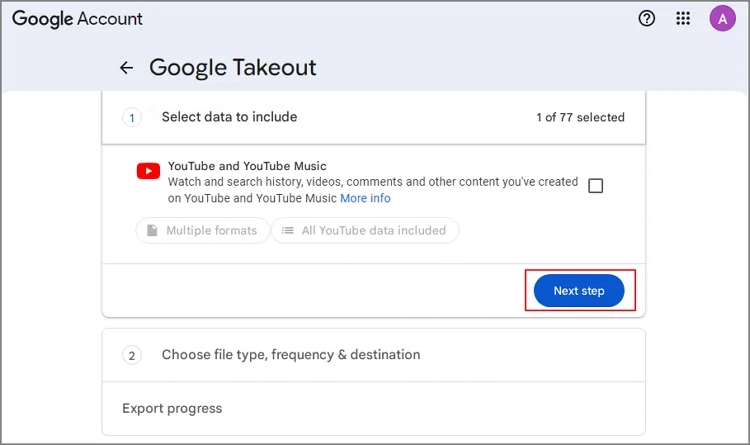
Step 4. Choose the Send download link via email > Export Once option. Choose the File type & File size accordingly. Then, tap on Create export.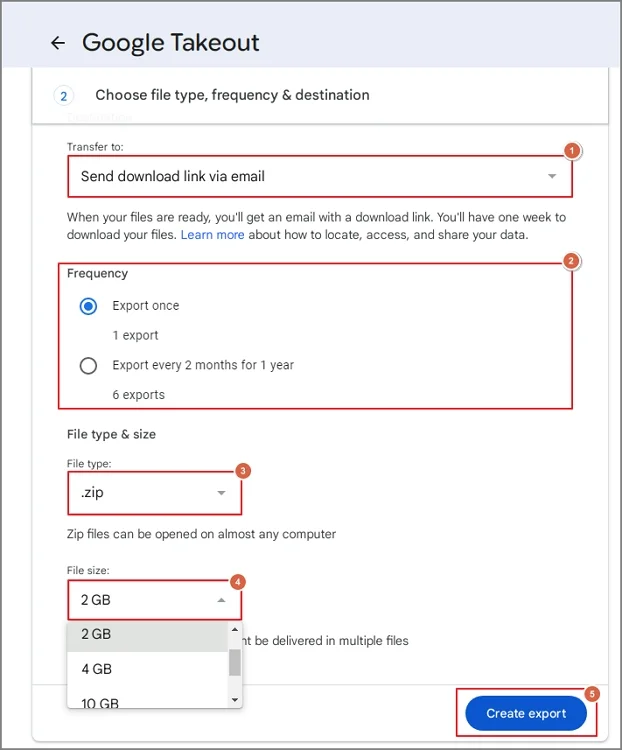
Step 5. It will start the export process. Here, you can see complete details like starting date, cancel export, or create another export.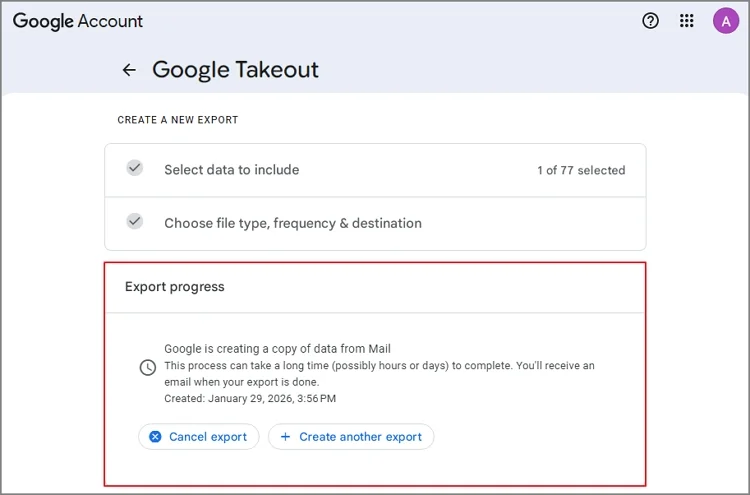
Step 6. Wait for the email. Once you are prompted with the email that “Your Google data is ready to download”, tap on the Download your files link. Verify your identity again with the needed credentials. The download process will start automatically.
Step 7. Find the downloaded .zip file on your local system & then extract it.
Best Practices to Organize Saved Gmail Emails
Follow the provided guidelines for better management of saved Gmail emails:
- Rename files with clear subject names.
- Create folders by year, project, or sender.
- Store attachments in the related sub-folder.
- Back up saved Gmail emails to an external hard drive.
Common Mistakes to Avoid [Need to Consider]
Explore the mistakes that you should avoid while saving Gmail emails to the local drive.
- Using only one backup method.
- Forgot to save attachments separately.
- Saved emails without meaningful names.
- Mixed professional & personal emails in one folder.
End Thoughts
Saving Gmail emails to the computer’s hard drive is the safest option to safeguard personal or crucial information. Since Google doesn’t provide a single-click feature, you need to use the right technique to quickly extract email addresses from Gmail. The blog has covered all the possible ones in detail, including their stepwise approach. Try them carefully.
Frequently Asked Questions
A. No. You need to download the attachments & save them separately into your local system.
A. Yes. This utility is a free service provided by Google.