

Email records often include crucial information like invoices, legal communication, client discussions, or official approvals. That’s why users save Outlook emails as PDF on MAC because it helps to preserve these records in a secure, universal, & portable format.
PDF overview: PDF files are easy to share, difficult to modify, & compatible across devices & platforms.
Looking for free methods to save Outlook emails as PDF on MAC? Here, the EmailsKB platform comes up with a new blog to provide complete information about the concern. It includes reasons, free methods, and guidelines for a hassle-free process.
Why Save Outlook Emails as PDF on Mac?
Know the reasons that drive users to save Outlook emails as PDF on Mac:
- Retains complete data integrity & intactness during use.
- Provides easy sharing & enhanced security compared to others.
- Offers universal compatibility as it can be opened on almost every device.
- Ideal for long-term record keeping & helps in auditing & documentation.
- Offers offline access so that emails can be viewed anytime without Outlook.
Manual Method to Save Outlook Emails as PDF on MAC for Free
After several hits & trials, we have provided the top solution that can help you save Outlook emails as PDF on MAC. In this, we will take help of the MacOS built-in Print-to-PDF feature. Also, It is essential to know that with this method, you can only save a single email as a PDF at a time. Here are the steps to follow the process error-free.
Step 1. Launch the Outlook for MAC. Go to Inbox & choose the desired email that you want to save in PDF format.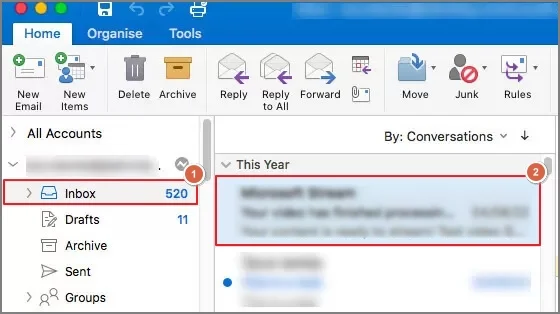
Step 2. Right-click on the specific email & hit the Print option.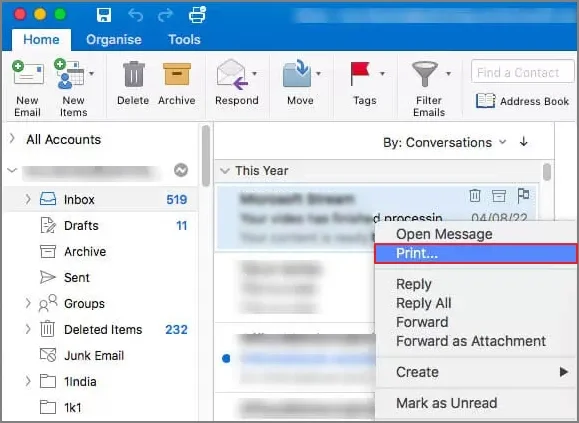
Step 3. Select the PDF option & tap on the Save as PDF option.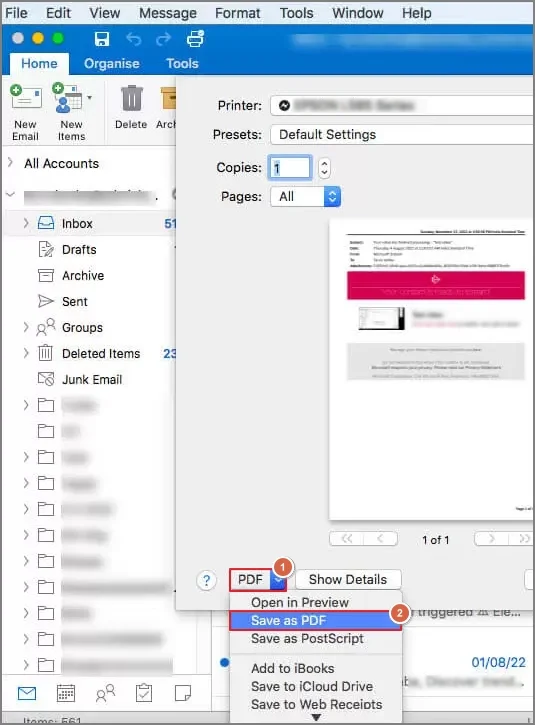
Step 4. At the end, provide the location, title, author, subject, and keywords. Hit the Save option.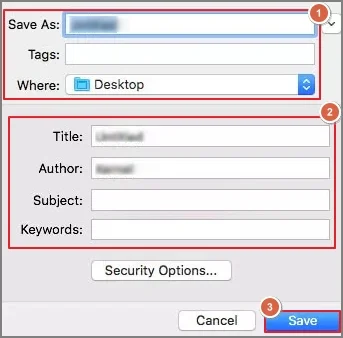
Note: In case you want to carry out the process quickly, take the help of shortcuts like Command + P to open the print dialog box directly after selecting the desired email.
Attachments are not Included in PDF. How Can we Save them Separately?
Since attachments are not automatically included in the PDF, you need to save them separately. Here are the steps to save attachments in Outlook for Mac:
Step 1. Open the Outlook email that contains attachments.
Step 2. Right-click on the attachment dropdown & click on the Save As or Download option.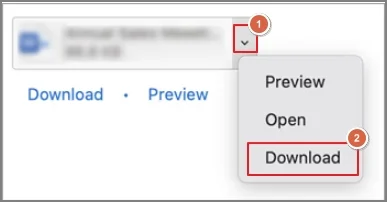
Step 3. Further, use the Finder to locate a place where you want to save the file.
Guidelines to make the Conversion Process Smooth
This section will provide you with key insights that can be helpful to make your saving Outlook emails as PDF on MAC process smooth & precise.
- Save PDFs in an organized folder.
- Use clear file names for easy identification.
- Ensure that attachments are saved separately.
- Check out the email layout before saving it as a PDF.
- Preview the PDF after saving to verify its accuracy.
Ending Thoughts
With the MacOS built-in print functionality, users can save Outlook emails as PDF on Mac without any hassle. But it needs to be executed carefully. Hopefully, the blog has fulfilled all your expectations about the topic with its diverse coverage. That’s what the EmailsKB platform is known for. Consistently delivering reliable, authentic, workable solutions in an easy-to-understand way.
Frequently Asked Questions
A. No. Outlook for Mac doesn’t offer a direct option to save emails as PDF. However, MacOS provides a built-in Print to PDF option that allows users to save emails in PDF easily.
A. Yes, it is available on all the modern versions of MacOS. No additional software is required to use it.
A. No. The email content will remain the same. The layout, text, sender details, and timestamps are preserved exactly as in Outlook.
A. Yes. Most clickable links remain active in the PDF. But it also depends on the PDF viewer you are using.